Tracks
Overview
A track is the way a recording appears on a particular release or, more exactly, on a particular tracklist. Every track has a title and is credited to one or more artist(s). (From the Musicbrainz article Track , which is released under the CC-BY-NC-SA License ).
See also:
List view
The list view displays all tracks that are in the library.
To access it, open the CONTENT menu, click on LIBRARY and then on TRACKS.

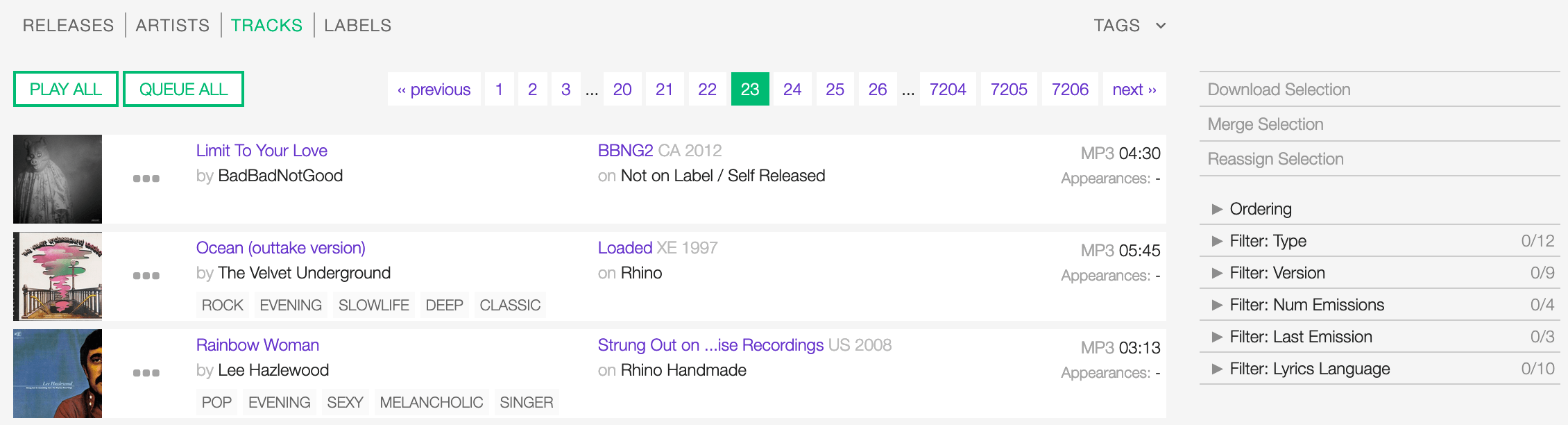
The items in the list are paginated (24 per page). Use the pagination controls above the list to navigate the results pages.
The PLAY ALL and QUEUE ALL buttons allow you to play/queue all tracks on the list’s current page at once.
See also:
Actions on selection
On the right sidebar are available some actions you can execute for multiple items in the list previously selected.
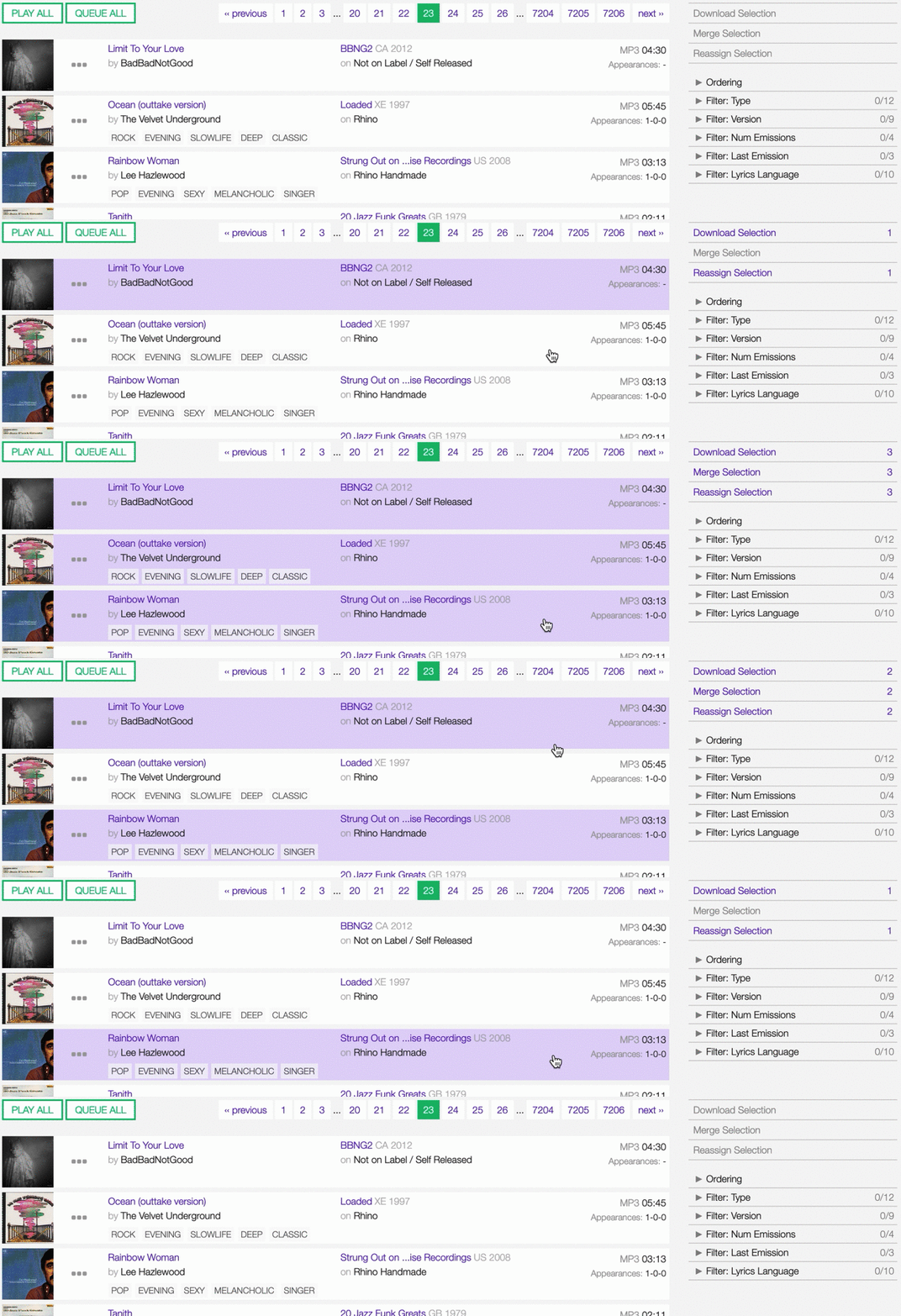
Move the cursor over the card and click on it to select the item. Click on the card again to deselect it.
The actions are:
- Download selection: Download the selected items (Radio pro only).
- Merge selection: Merge the selected items (Admin only).
- Reassign selection: Reassign the selected items to a different release (Radio Pro only).
Sorting the list
By default, the tracks are sorted by ‘Creation date’ (descending), and the newly created track profile is at the top of the list.
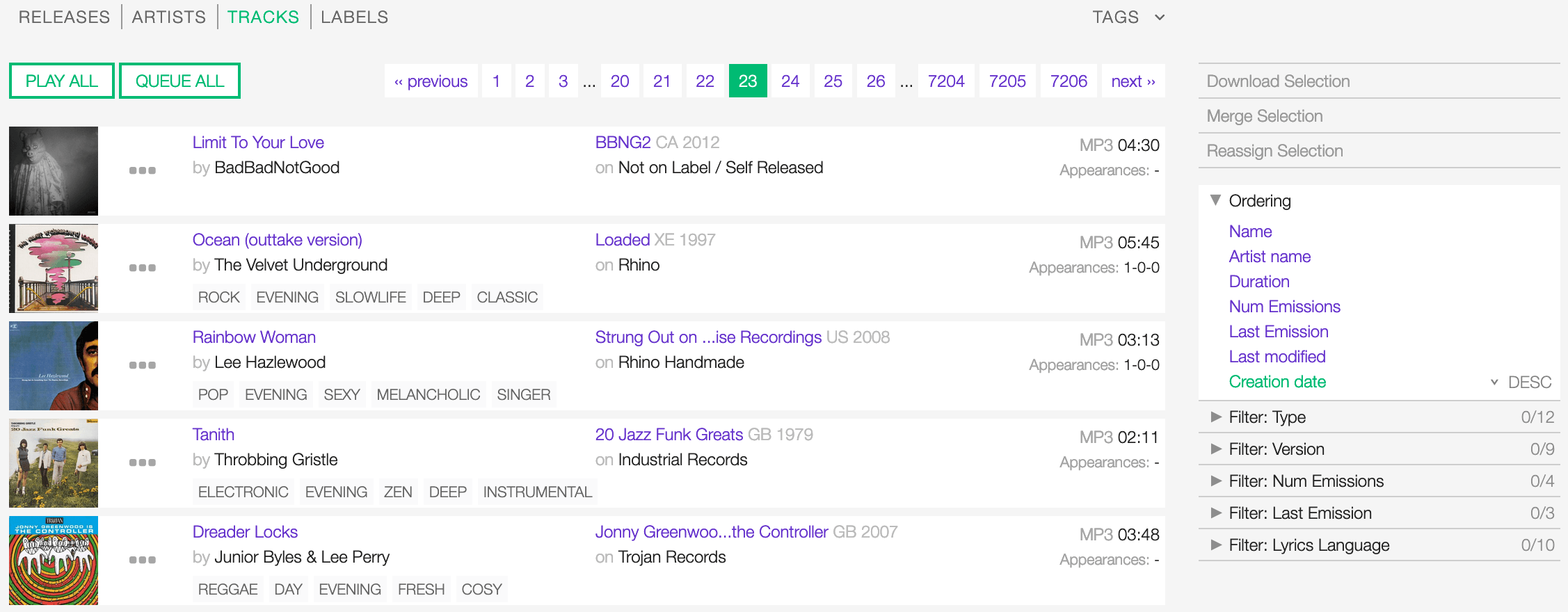
You can change the ordering parameter by clicking on Ordering to open the menu and selecting a different option.
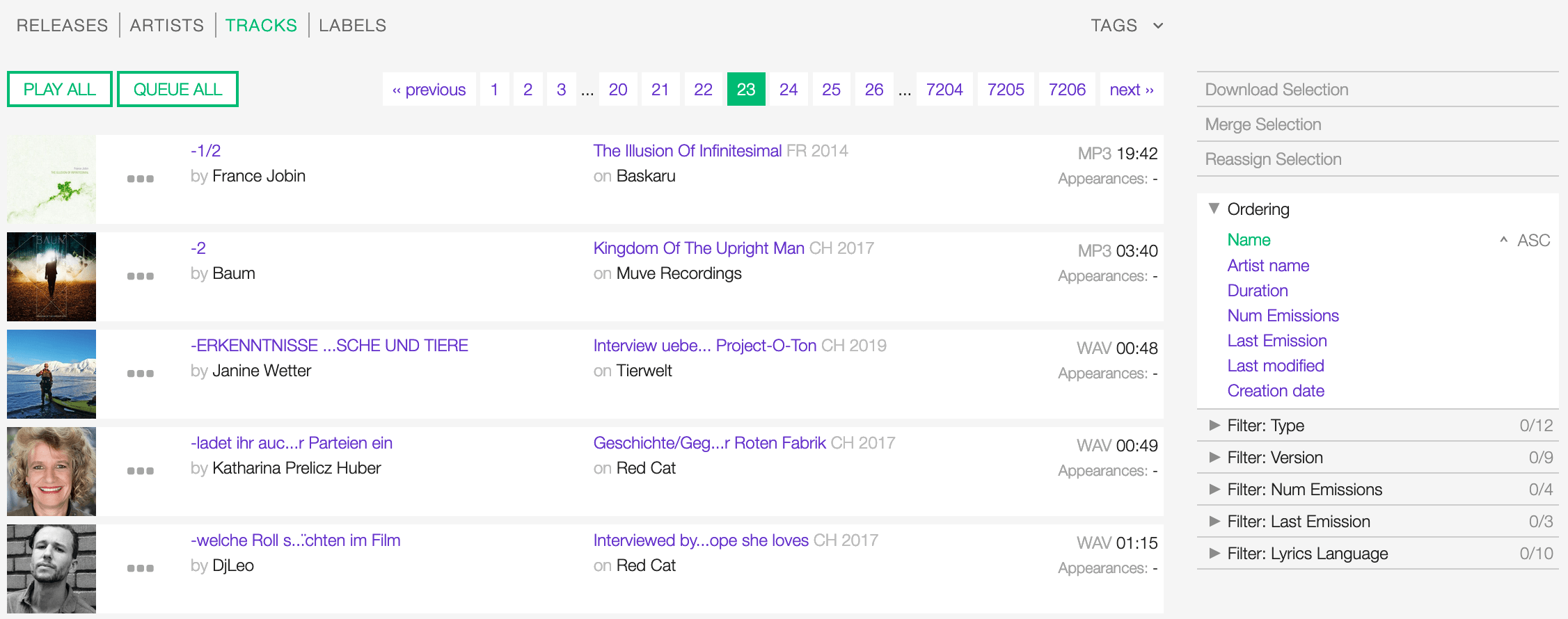
Click again on the active option to reverse the sorting order from ‘descending’ to ‘ascending’ (DESC/ASC).
The available options are:
- Name: The title of the track.
- Artist name: The name of the artist the track is primarily credited to.
- Duration: The duration of the track’s media file.
- Num Emissions: The number of times the track was played on-air (airplay).
- Last Emission: The last date the track was played on-air.
- Last Modified: The latest date a user edited the track profile.
- Creation date: The date a user created the track profile.
Filtering the list
You can filter the list by tags and specific properties associated with the tracks.
The page will automatically reload the filtered results every time you select or deselect a tag or a filter.
By Tags
Click on TAGS to open the tag cloud and then on a tag to select it.

Click on any active tag to deselect it and reset the result set.
By specific property
Click on the Filter: <property> to open the menu, then click on one or more values in the list.
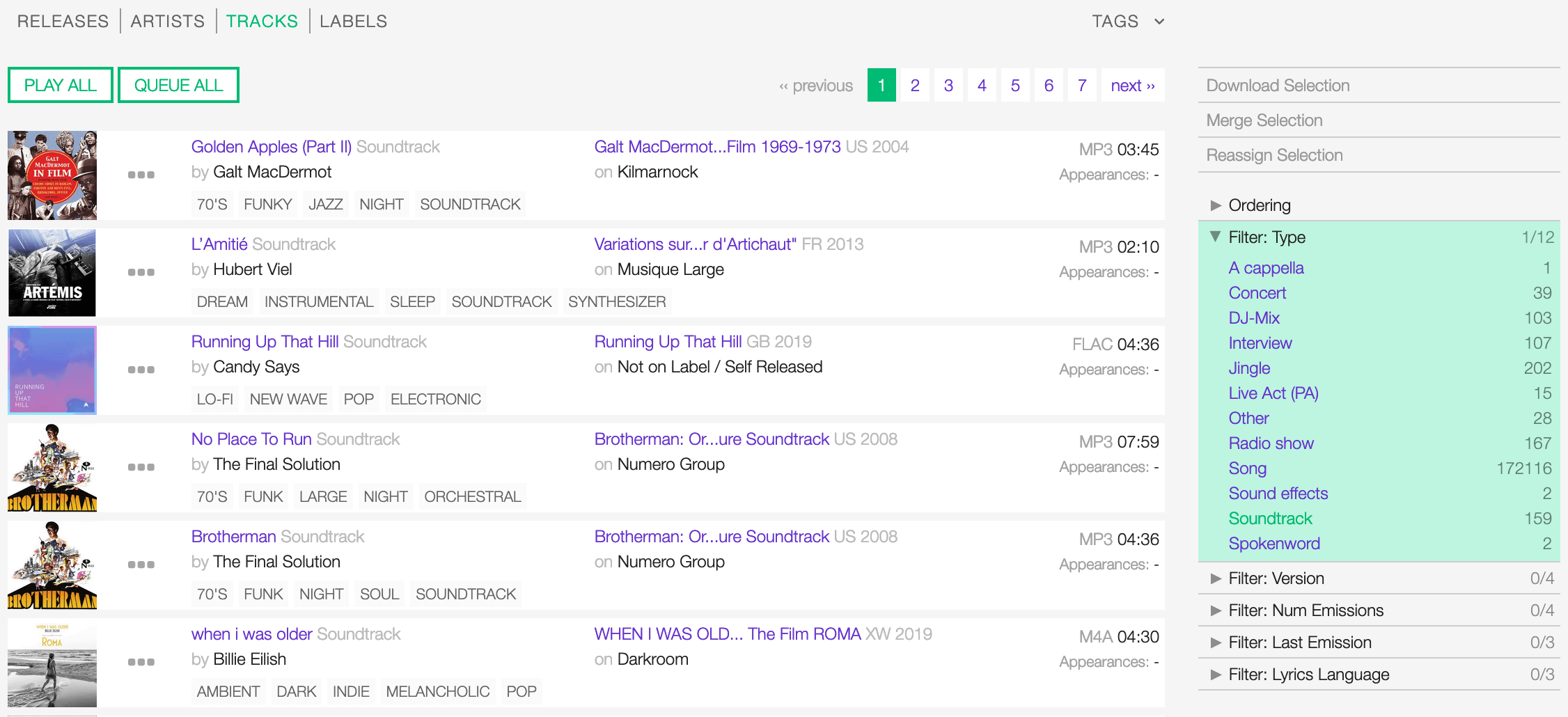
Click on any active filter value to deselect it and reset the result set.
You can filter by the following properties:
- Type: The type of track.
- Version: The version of the track.
- Num Emissions: The number of times the track was played on-air (airplay).
- Last Emission: The last date the track was played on-air.
- Lyrics Language: The language of the lyrics.
Tags and filters also work in combination:
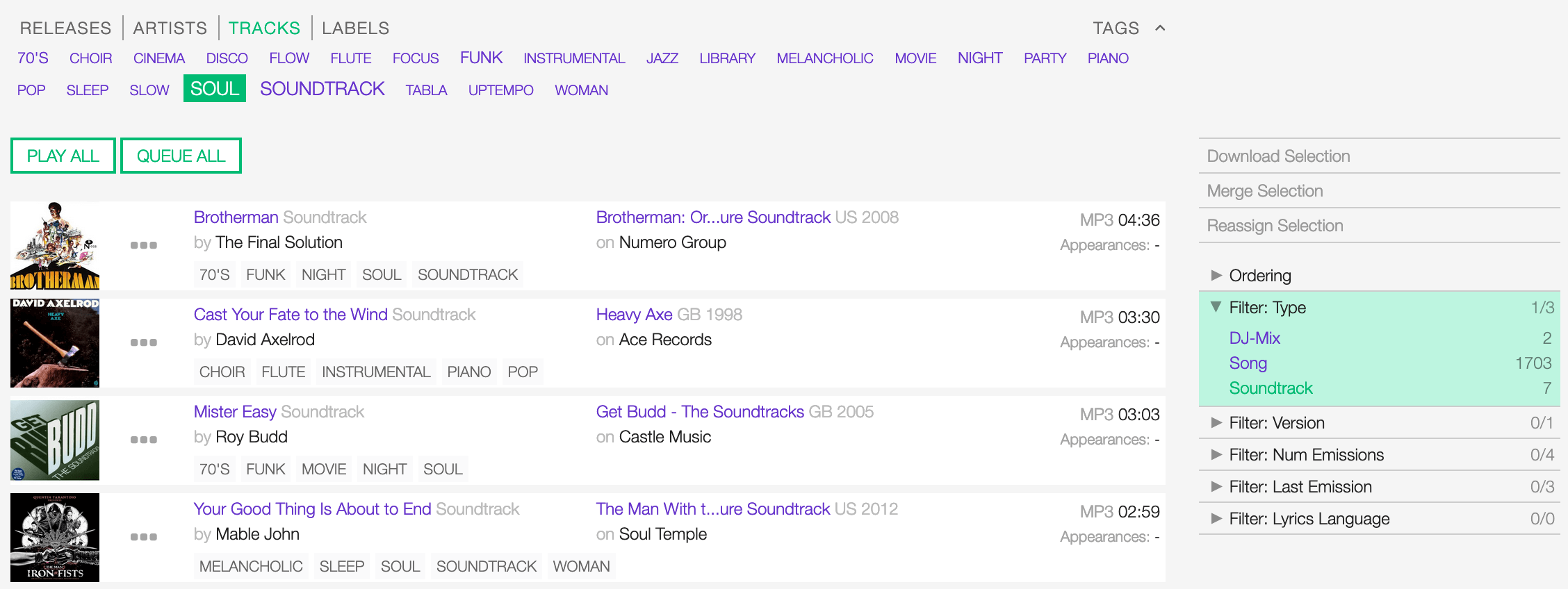
Example: Show all ‘Soul’ ‘Soundtrack’ tracks.
The Track card
The track card contains information and actions about a track in the list.
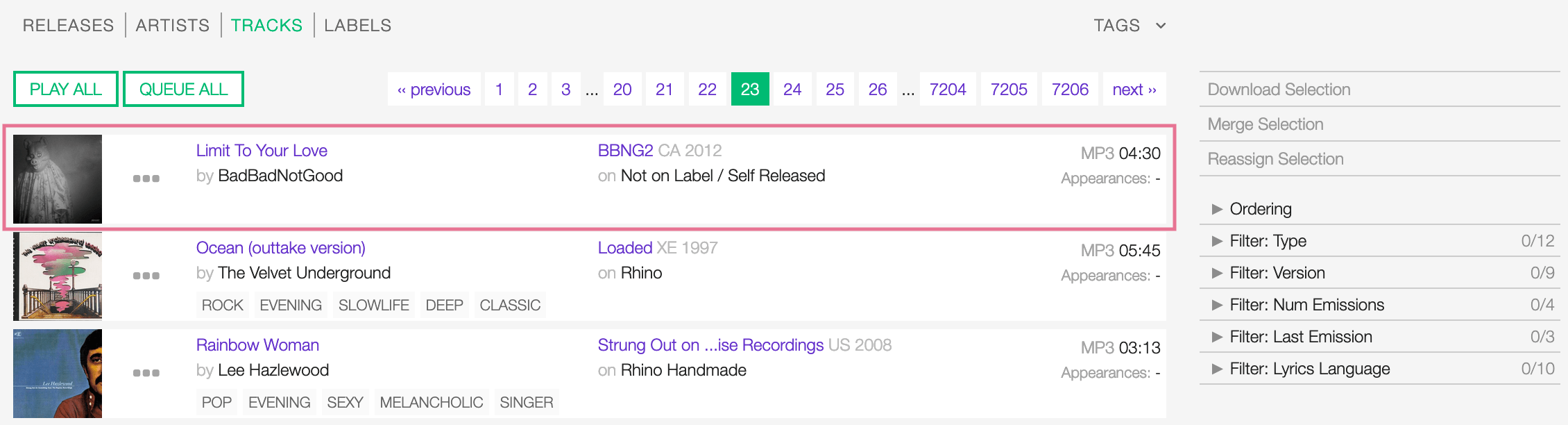
Starting at the left, the information is:
- The cover art of the release.
- The track’s title and the type: (if different than ‘song’).
- The artist/s the track is primarily credited to.
- The associated tags (if any).
- The release title.
- The label which issued the release.
- The audio format of the track’s media file.
- The duration of the track’s media file.
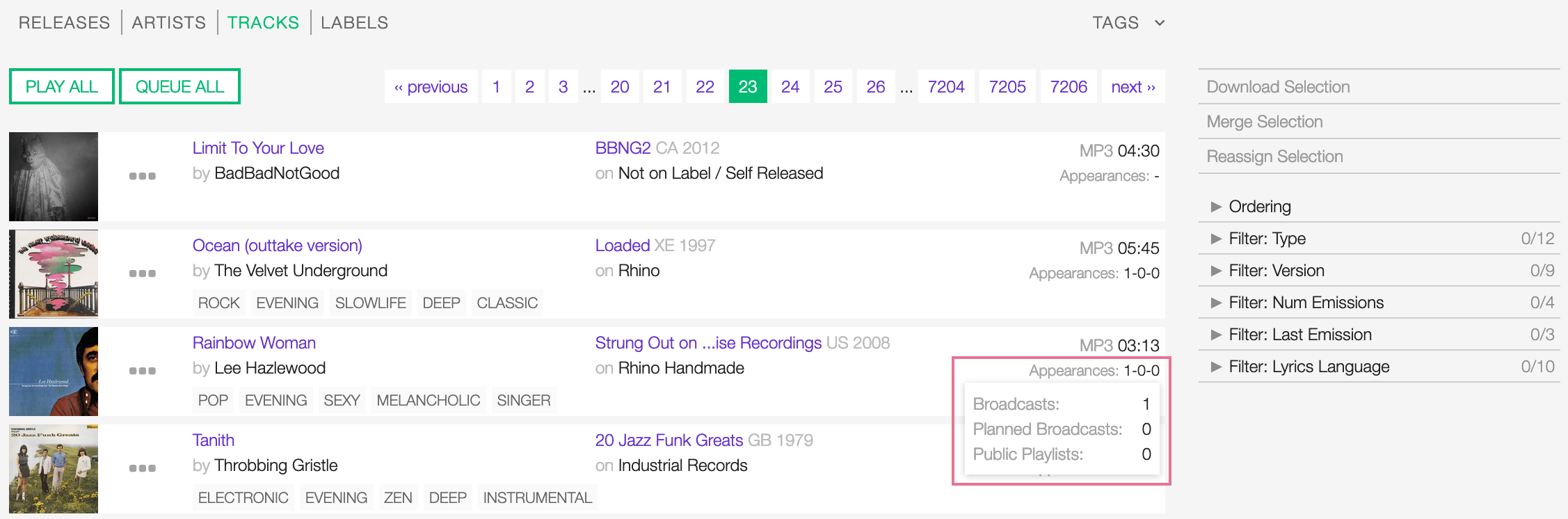
‘History’ and ‘Appearances’ are two additional pieces of information displayed when you enable them in the user settings.

The ‘Appearances’ tooltip shows how many/which type of playlists already include the track:
- Broadcasts: A broadcast-ready playlist.
- Planned broadcasts: A private playlist with a target duration set.
- Public playlists: A public playlist.
See also:
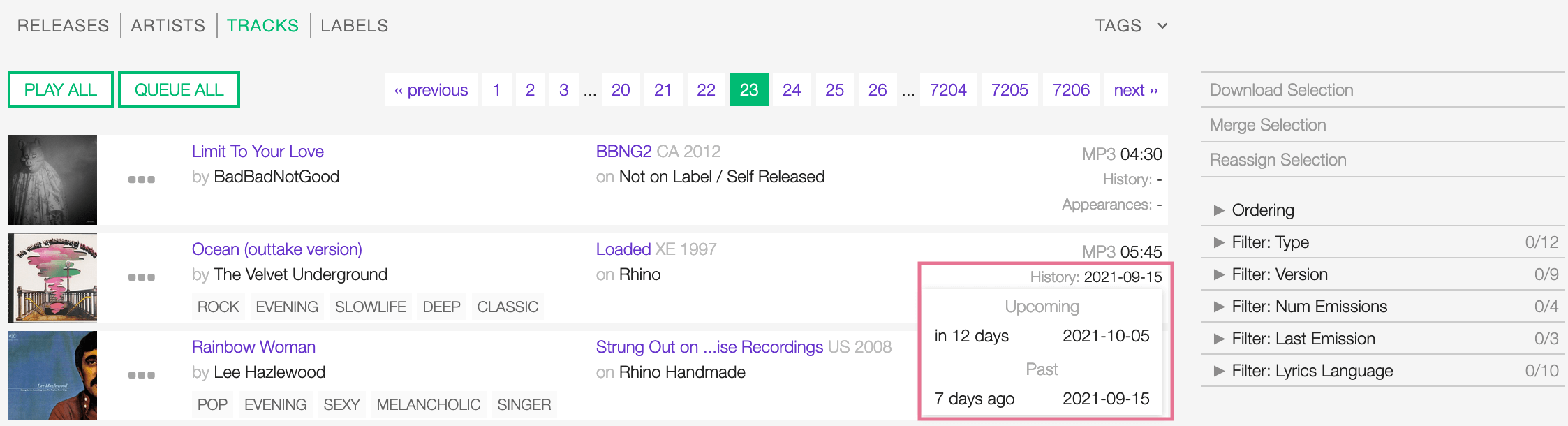
The ‘History’ tooltip shows you the past and upcoming dates the track was/will be broadcast.
Warning
‘History’ is an experimental feature and may cause some slowdowns in loading the content of pages. Please keep it deactivated if you don’t need it.
The play icon is visible as you move the cursor over the cover art:
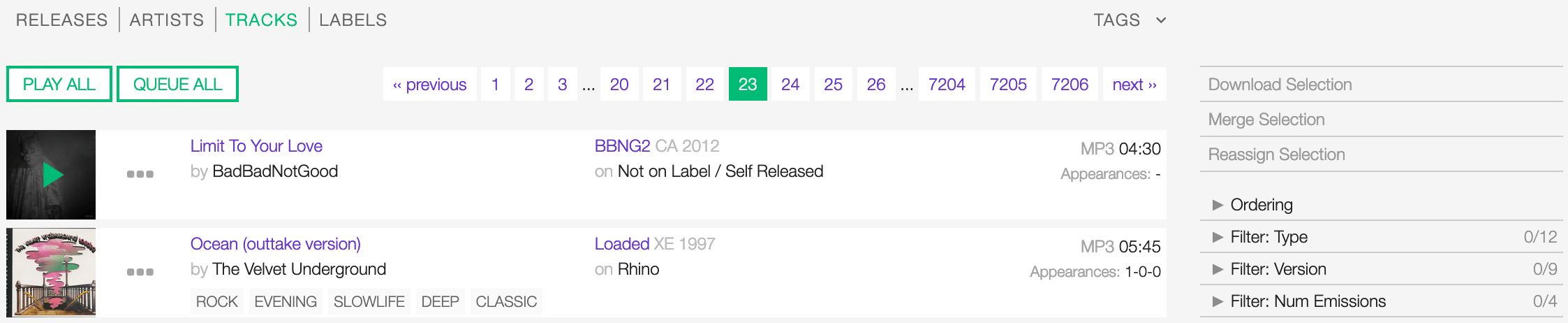
The popup player opens and starts playing it automatically
You can access additional actions by clicking on ‘more options’ (3 dots):
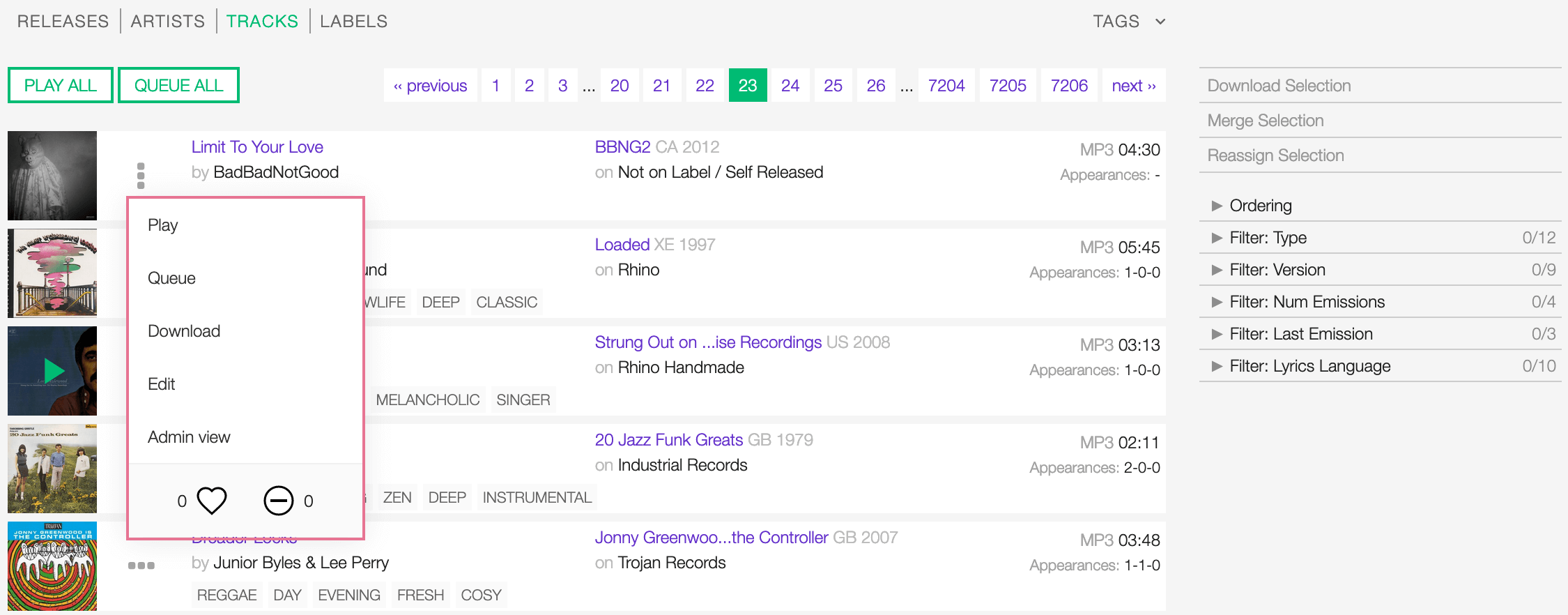
The actions are:
- Play: Play the track using the the popup player.
- Queue: Queue the track in the popup player.
- Download: Download the track.
- Edit: Open the form to edit the track information.
- Admin view: Open the track profile in the admin interface (Admin only).
- Rating tool: Like or dislike the track.
Detail view
The detail view displays all information related to a track.
You can open it by clicking on the track title in the library or release tracks list.
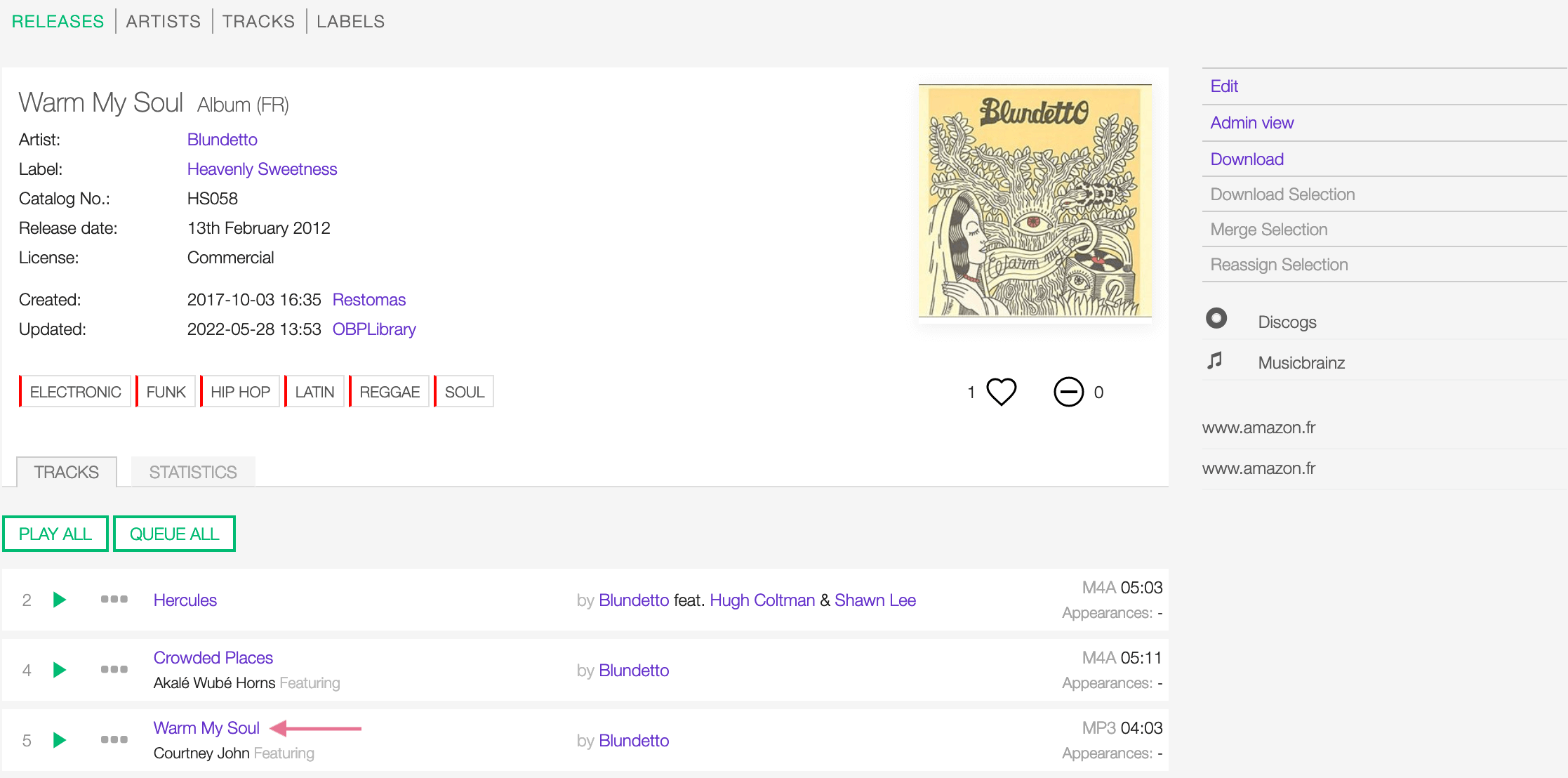
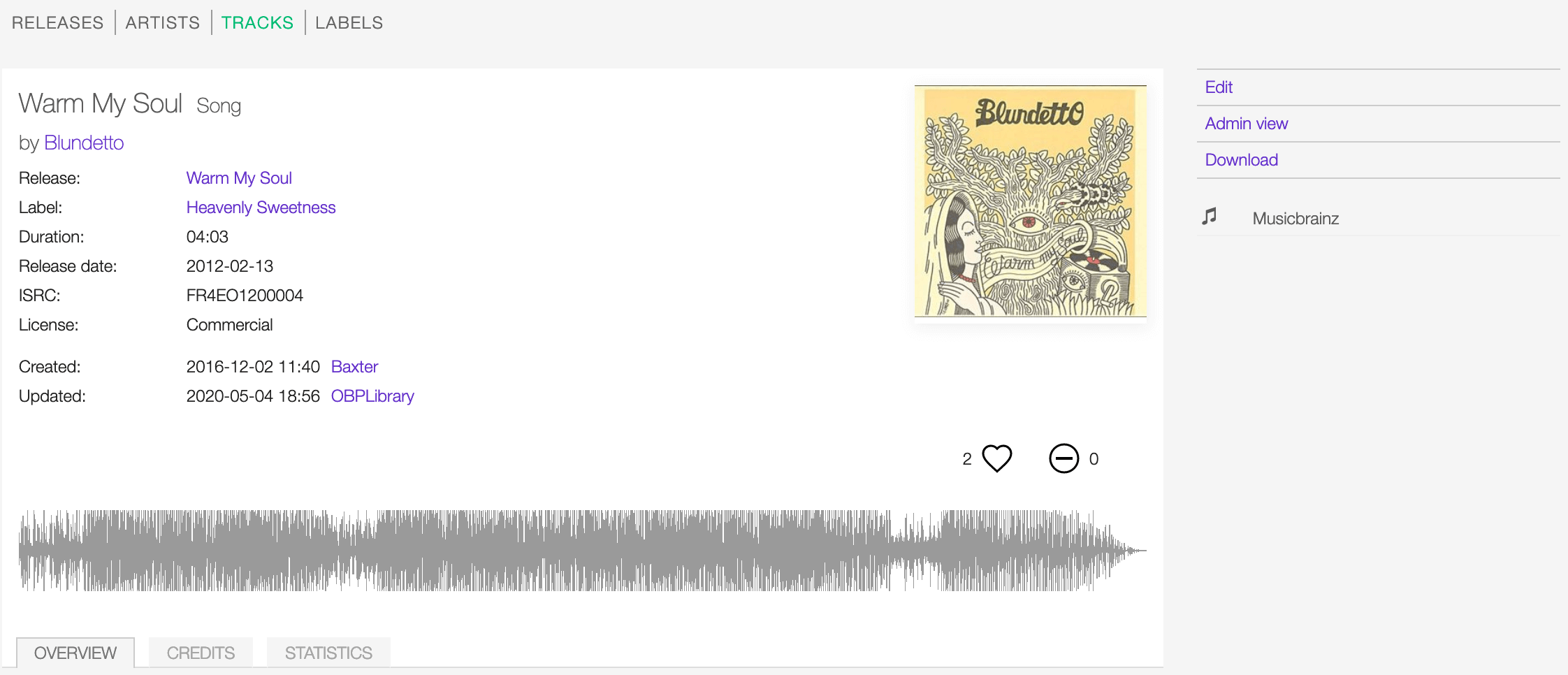
On the right sidebar are available the following actions:
- Edit: Open the form to edit the track information.
- Admin view: Open the track profile in the admin interface (Admin only).
- Download: Download the track.
Below are the URLs of the track page on other online platforms (if any).
The details card
The details card contains information and actions about the track.
Starting at the top left, the information is:
- The track’s title and the type:.
- The artist/s the track is primarily credited to.
- Release: The release title.
- Label: The label which issued the release.
- ISRC: The ISRC code.
- License: The license applied to the track.
- Created: The date a user created the track profile and the username.
- Updated: The latest date a user edited the track information and the username.
- The associated tags (if any).
- The waveform image of the track’s media file.
- The cover art of the release.
- The rating tool.
The actions are visible as you move the cursor over the cover art.
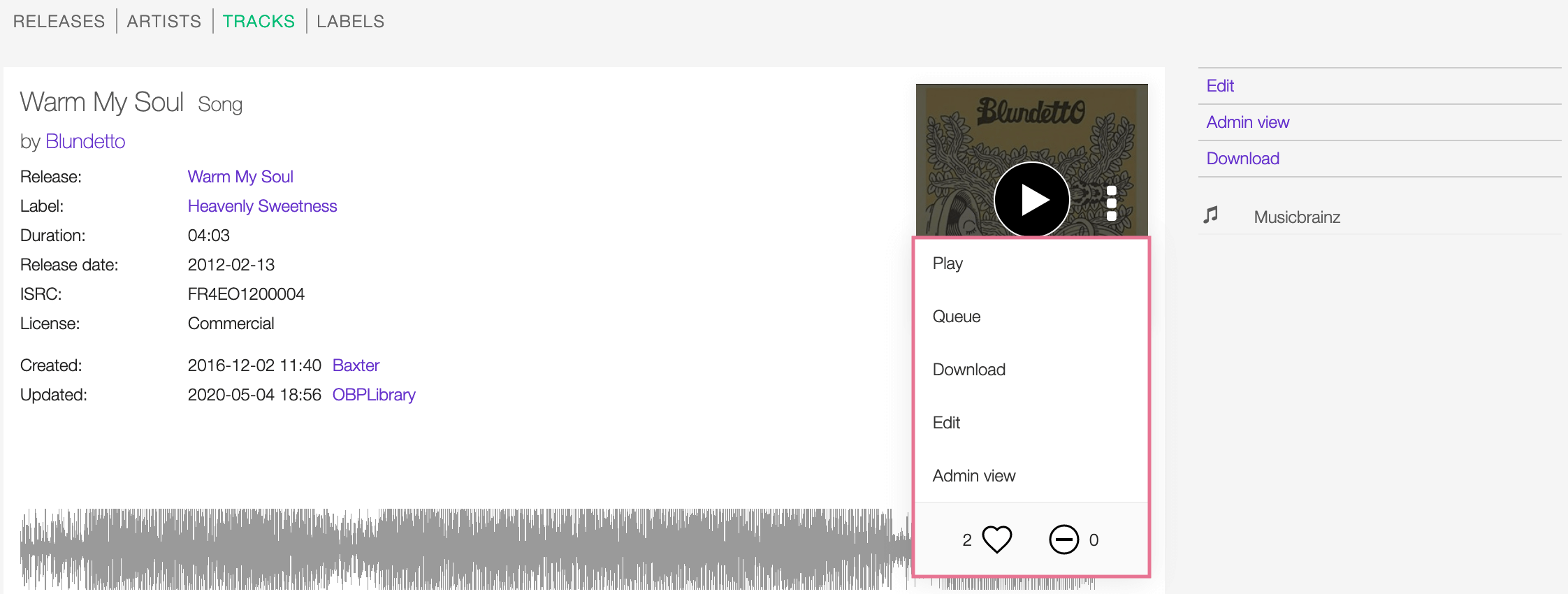
Click the play icon to listen to the track or on ‘more options’ (3 dots) to access additional actions.
The actions are:
- Play: Play the track using the the popup player.
- Queue: Queue the track in the popup player.
- Download: Download the track.
- Edit: Open the form to edit the track information.
- Admin view: Open the track profile in the admin interface (Admin only).
- Rating tool: Like or dislike the track.
The overview tab
The overview tab shows you which Broadcast/Public playlists already include the track:
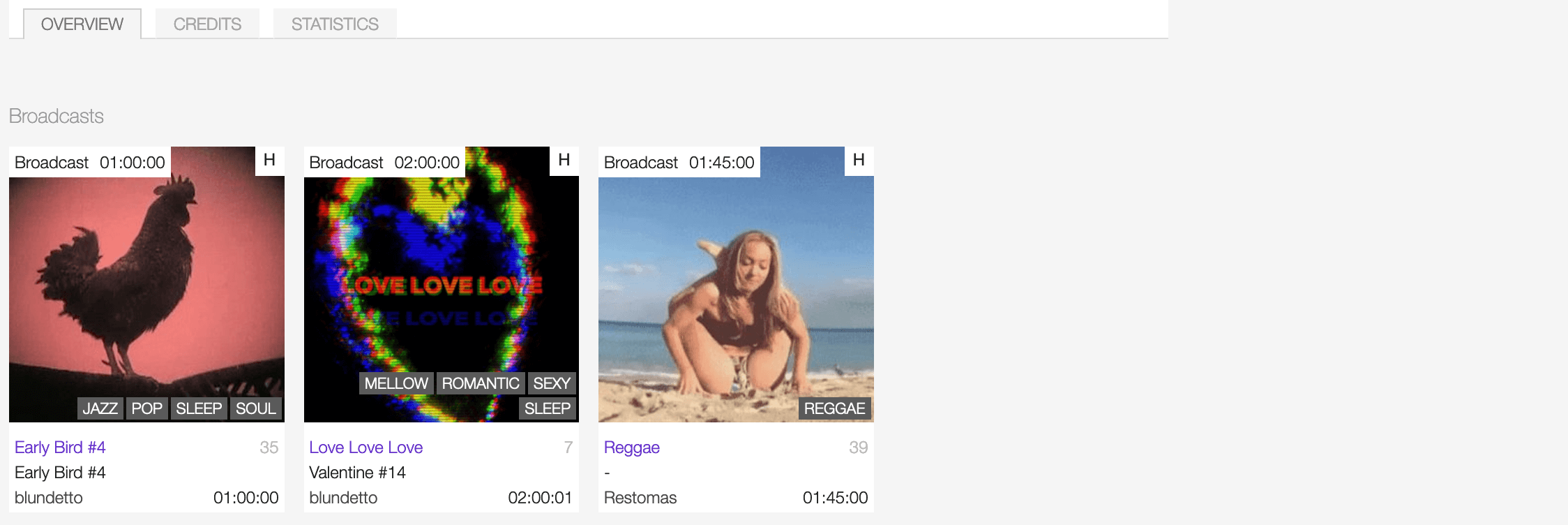
As well as the track’s media file information:

The information is:
- Encoding: The audio encoding properties.
- UUID: The Universal Unique Identifier code.
- Original filename: The name given to the file and file extension.
Credits tab
The credits tab shows you all the extra artist(s) credited to the recording (remixer, composer, lyricist, featuring, etc.).

Statistics tab
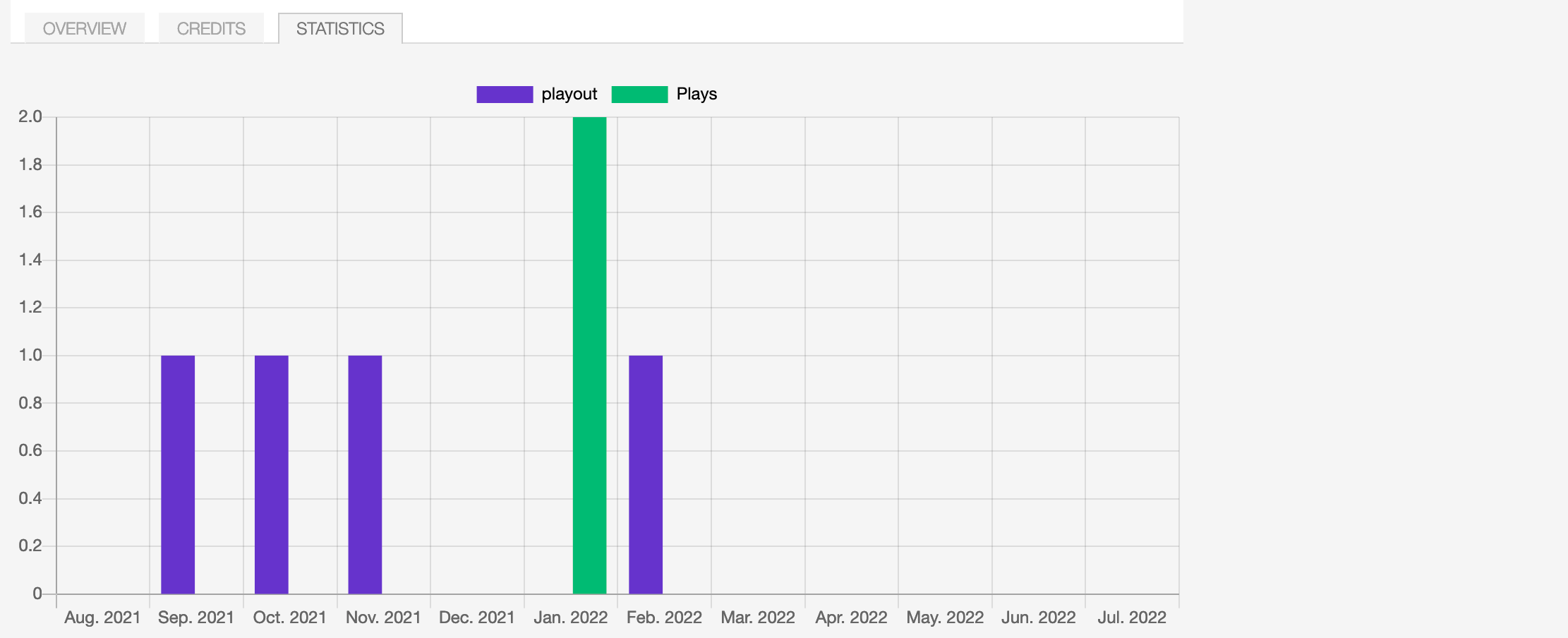
The statistics tab shows a bar chart illustrating how often the track was played on the platform (plays) and broadcasted on-air (playout) monthly.
Form view
The form view allows to edit the information of the track.
On the top side of the form are displayed the current information of the track (as displayed in the detail view).
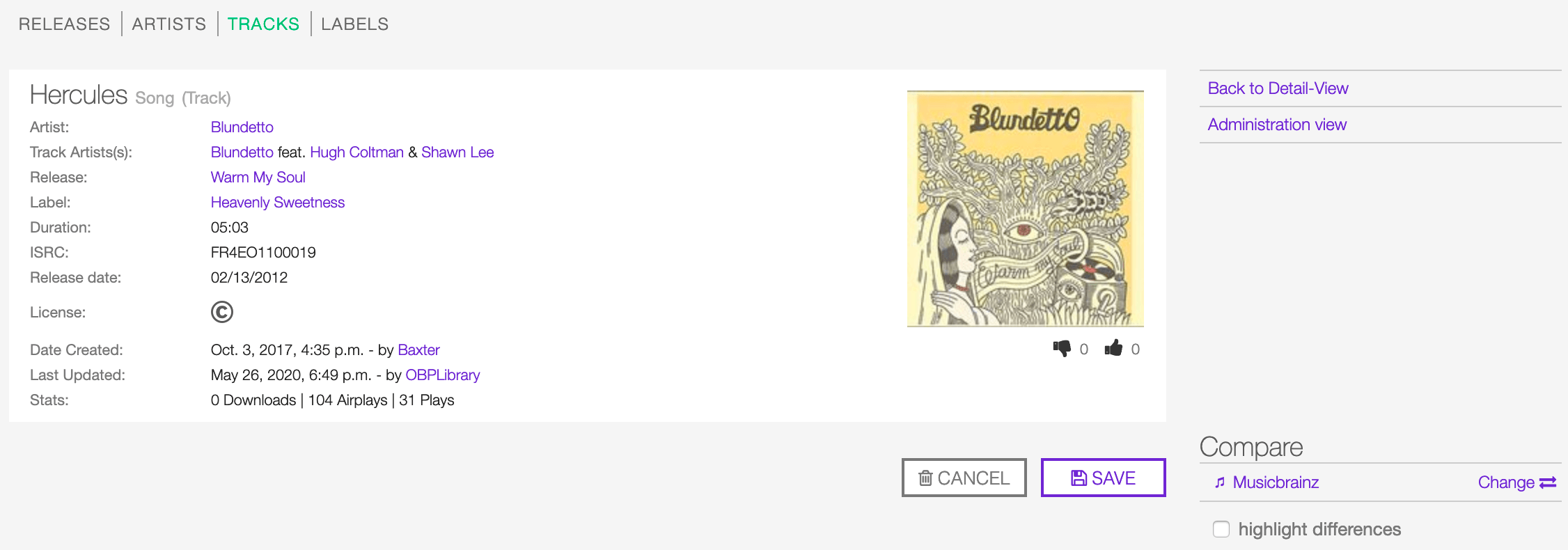
After editing the information, click on SAVE to confirm the changes or on CANCEL to undo the changes and reset the form.
On the right side of the page are available the following options:
- Back to detail view: Exit the form and return to the detail view.
- Administration view: Open the track profile in the admin interface (Admin only).
A comparison tool is available to help complete the information:
- Compare - Musicbrainz: Search for matches in the Musicbrainz database and retrieve the information from it.
Below are described the information open broadcast collect for a track.
General
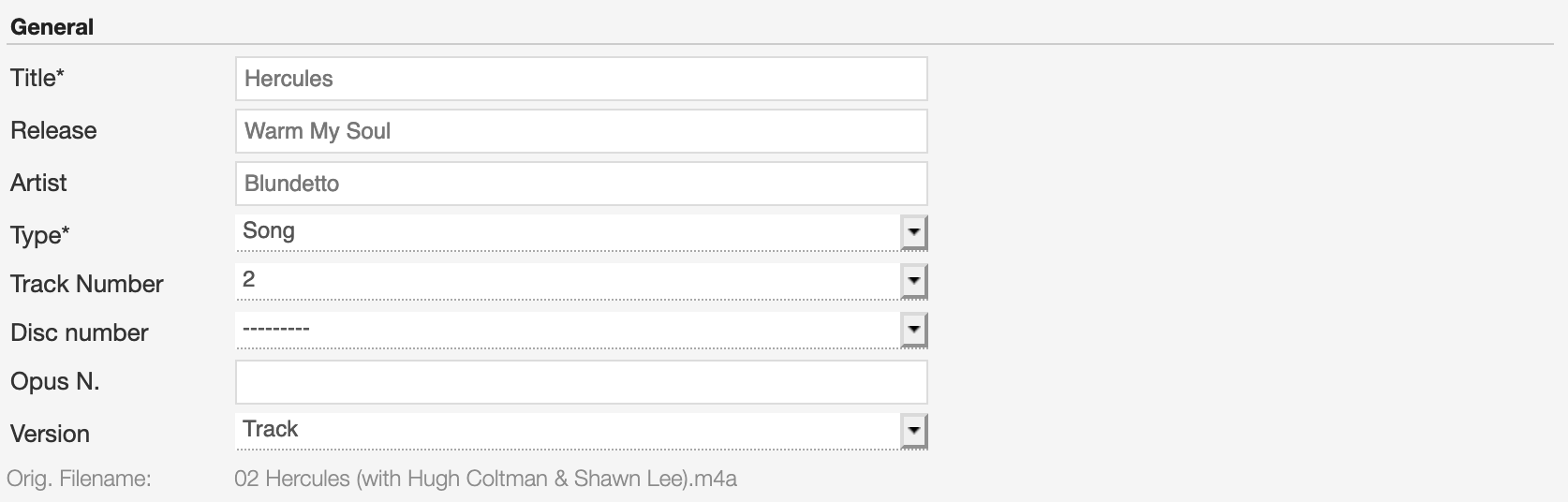
Title
The title of the track.
Release
The title of the release the track appears on.
Note
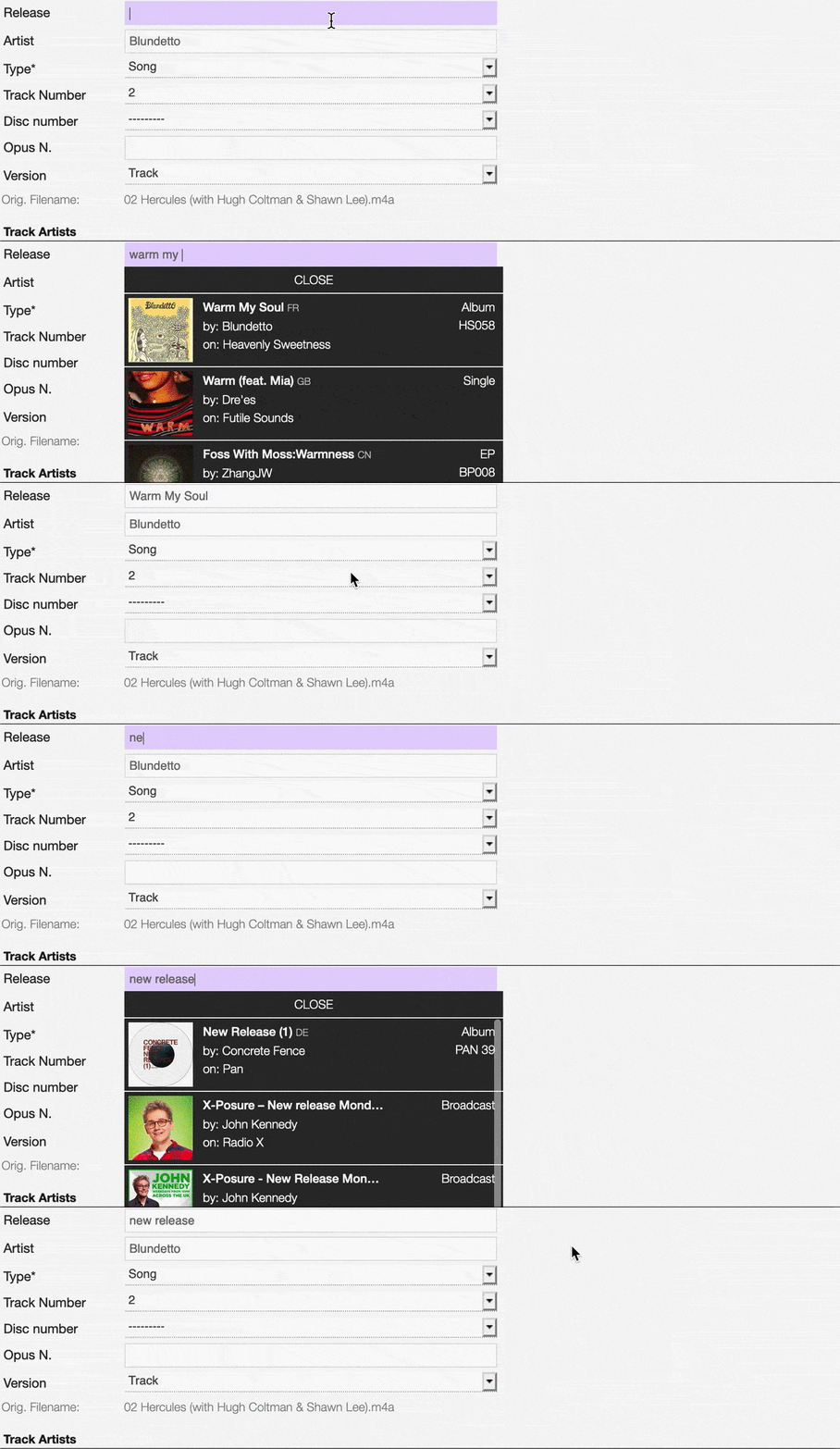
Typing inside the ‘Release’ field activates the auto-completion, listing all profiles in the library whose name matches the current text typed in.
Click on the matching profile to select it or on ‘Close’ to close the list and create a new profile.
Artist
The name of the artist the track is primarily credited to. Use the track artists fields to add multiple artists.
Note
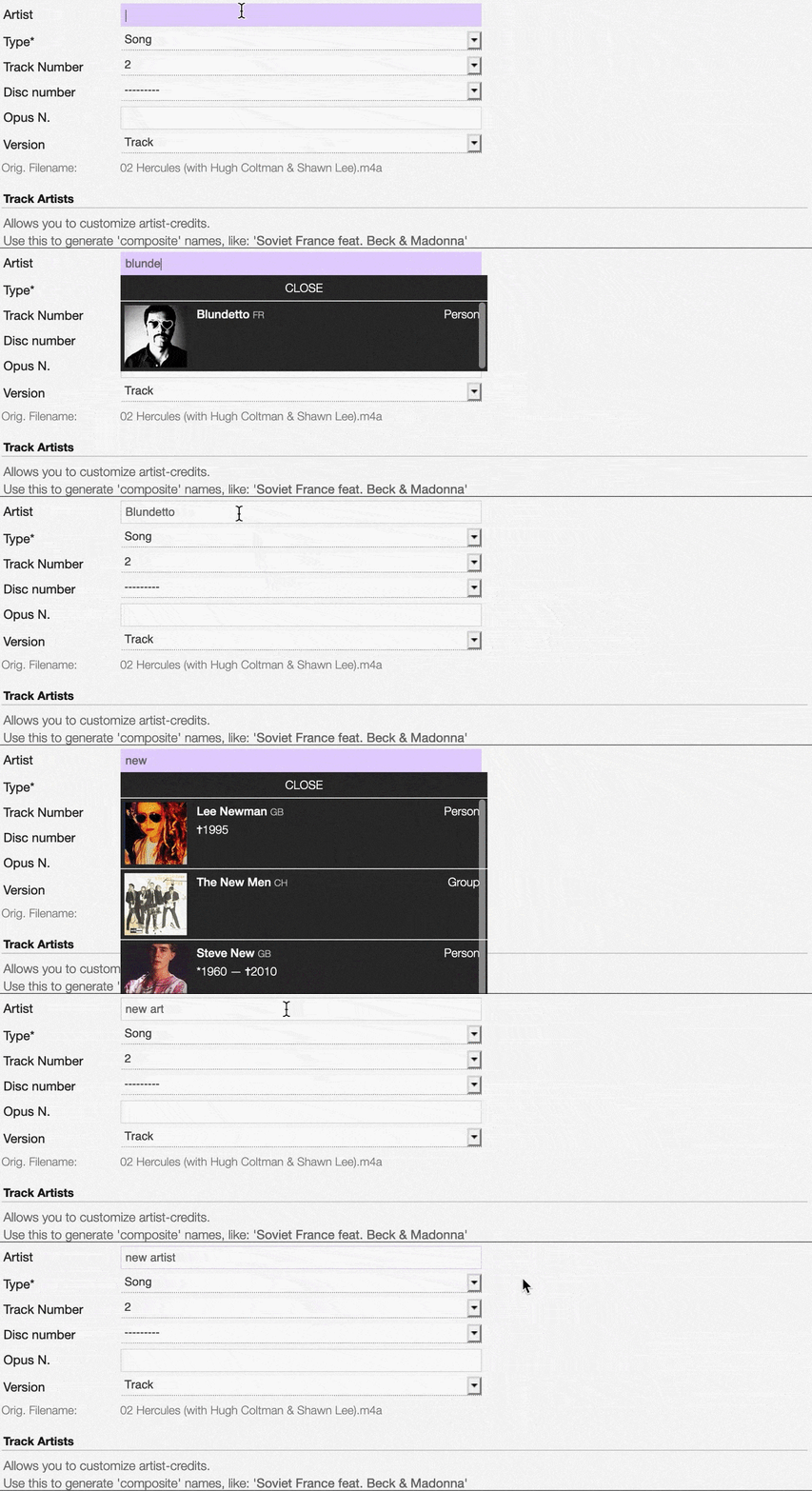
Typing inside the ‘Artist’ field activates the auto-completion, listing all profiles in the library whose name matches the current text typed in.
Click on the matching profile to select it or on ‘Close’ to close the list and create a new profile.
Type
The type of recording. Please refer to the descriptions below to determine which value to choose.
UNDER CONSTRUCTION
Track number
The track number (the position in the release tracklist).
Disc number
The disc number (for releases consisting of multiple discs).
Opus number
The Opus number the composer (or their publisher) assigned to the composition. Please refer to the descriptions below.
In musical composition, the opus number is the ‘work number’ that is assigned to a composition, or to a set of compositions, to indicate the chronological order of the composer’s production. Opus numbers are used to distinguish among compositions with similar titles; the word is abbreviated as ‘Op.’ for a single work, or ‘Opp.’ when referring to more than one work. (From the Wikipedia article Opus number , which is released under the CC-BY-SA License ).
Version
The version of the recording. Please refer to the descriptions below to determine which value to choose.
UNDER CONSTRUCTION
Track Artists
The artist(s) the recording is primarily credited to.
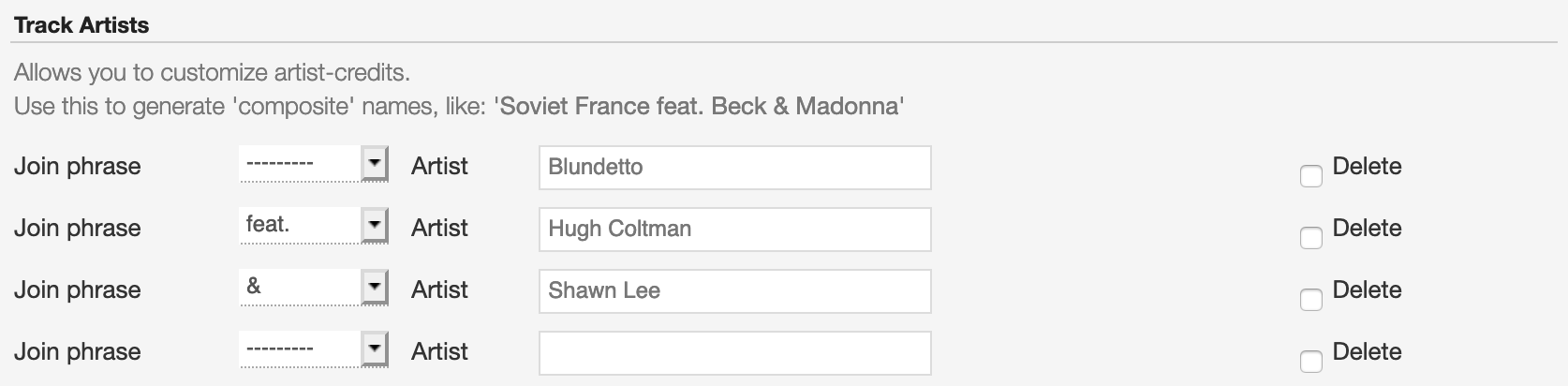
The system automatically creates a new empty field every time a name is entered. (up to 15 per editing session).
By default the system display the name written in the primary artist field.
To override the default value, type again the primary artist name inside the first field. Keep adding names in separated fields and select the ‘join phrase’ to be used in between.
Note
Typing inside the ‘Artist’ field activates the auto-completion, listing all profiles in the library whose name matches the current text typed in.
Click on the matching profile to select it or on ‘Close’ to close the list and create a new profile.
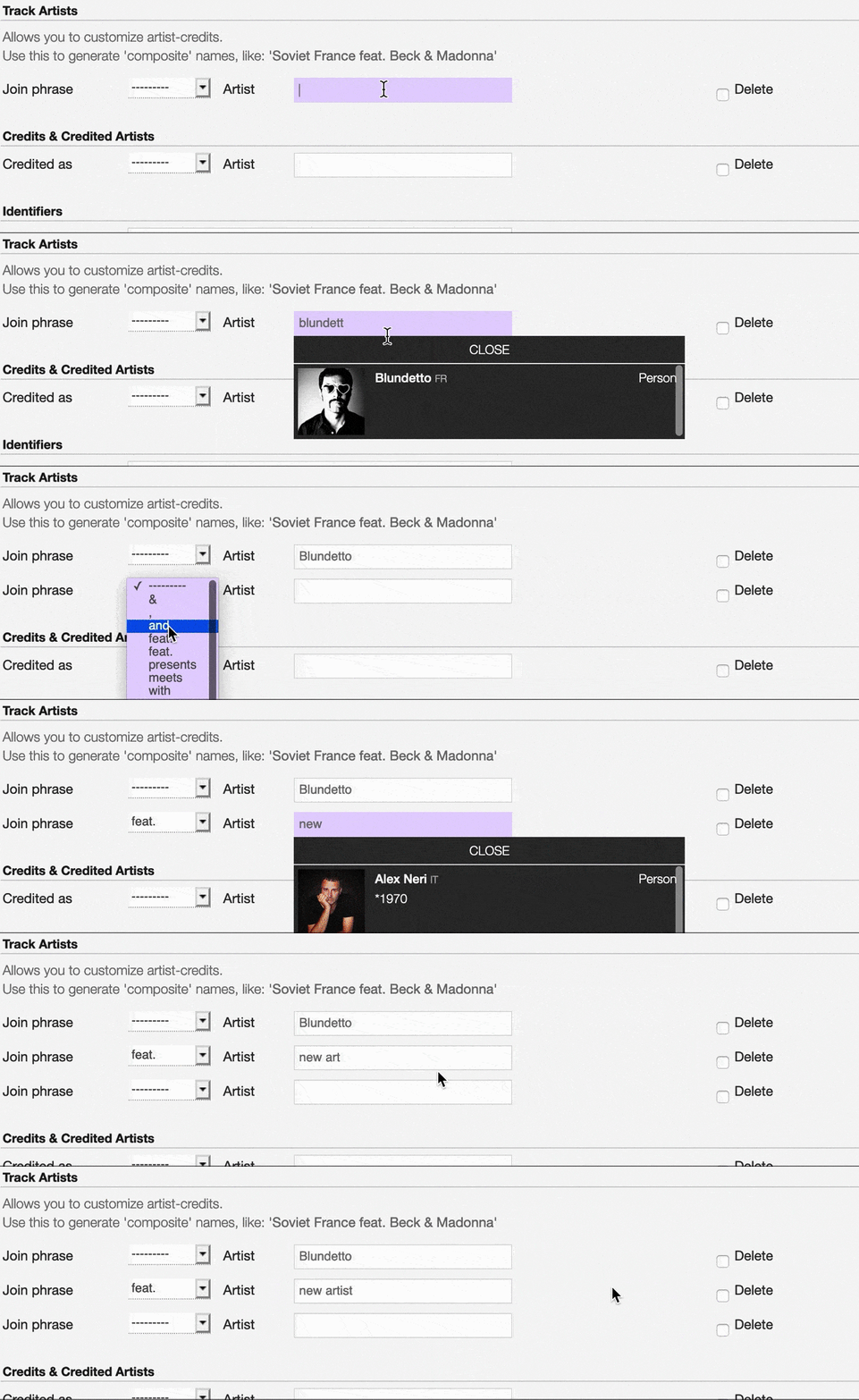
To remove an artist click on the respective ‘Delete’ check-box and save the form.
Credits & Credited Artists
The extra artist(s) credited to the recording (remixer, composer, lyricist, etc).

The system automatically creates a new empty field every time a name is entered. (up to 15 per editing session).
Type the artist name inside the first field. Keep adding names in separated fields and select the appropriate role from the ‘Credited as’ dropdown list.
Note
Typing inside the ‘Artist’ field activates the auto-completion, listing all profiles in the library whose name matches the current text typed in.
Click on the matching profile to select it or on ‘Close’ to close the list and create a new profile.
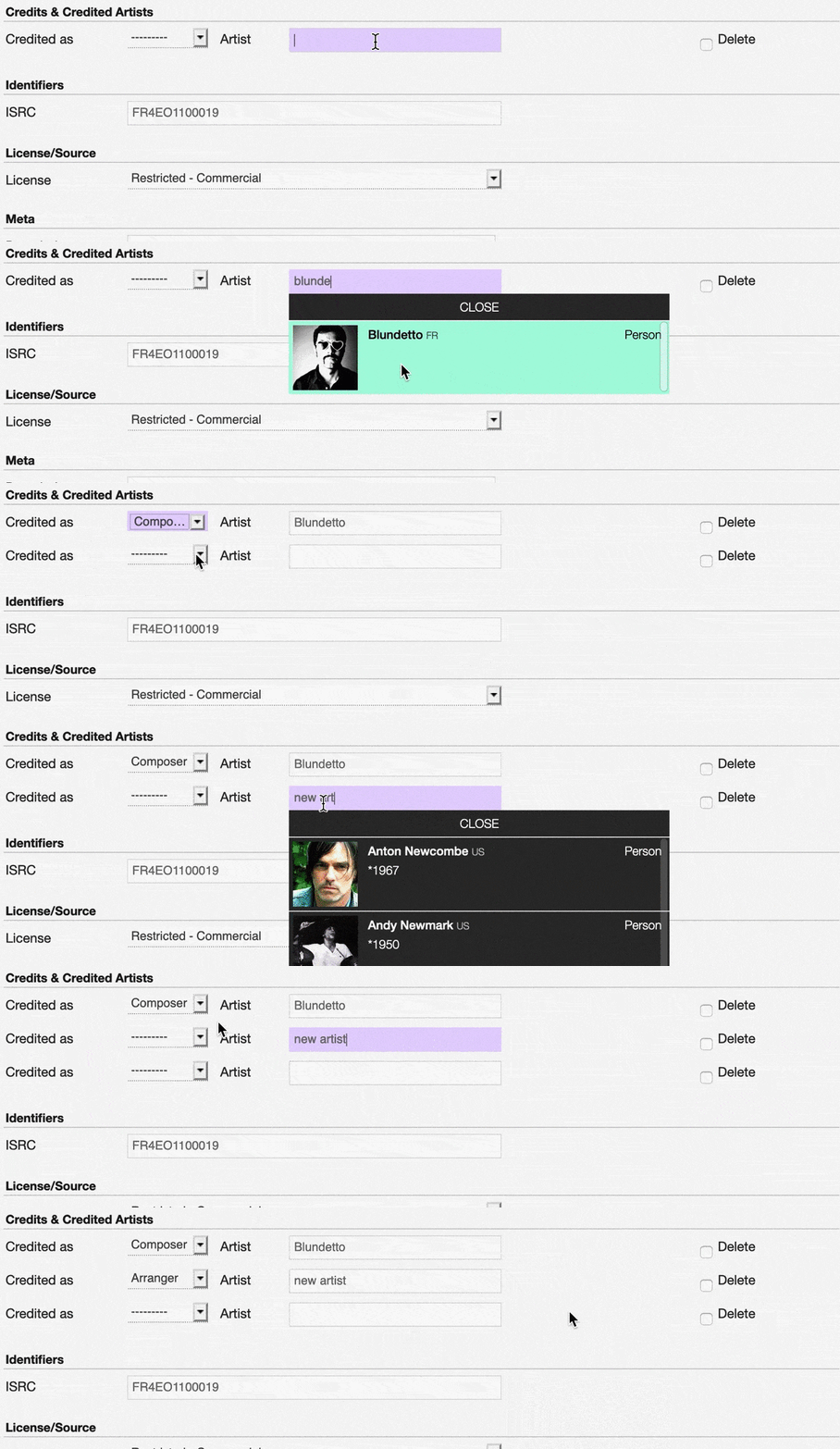
To remove an artist click on the respective ‘Delete’ check-box and save the form.
Identifiers
The identification code associated with the recording.

ISRC
The ISRC code. Please refer to the description below.
The International Standard Recording Code (ISRC) is an international standard code for uniquely identifying sound recordings and music video recordings.
ISRC codes are always 12 characters long, in the form ‘CC-XXX-YY-NNNNN’. The hyphens are not part of the ISRC code itself, but codes are often presented that way in print to make them easier to read. (From the Wikipedia article International standard recording code , which is released under the CC-BY-SA License ).
License / Source
The license applied to the recording.

Please refer to the descriptions below to determine which value to choose.
Restricted - Commercial
Apply this license when the usage of the recording is monetized.
Restricted use
Apply this license when the copyright information is unknown.
Restricted - Self owned
Apply this license when you are the copyright holder of the composition and sound recording.
Multiple
Apply this license when the recording contains multiple content with different licenses apply to them.
Public domain
The public domain consists of all the creative work to which no exclusive intellectual property rights apply. Those rights may have expired, been forfeited, expressly waived, or may be inapplicable.
As examples, the works of William Shakespeare and Ludwig van Beethoven, and most early silent films, are in the public domain either by virtue of their having been created before copyright existed, or by their copyright term having expired. (From the Wikipedia article Public domain , which is released under the CC-BY-SA License ).
Creative Commons
A Creative Commons (CC) license is one of several public copyright licenses that enable the free distribution of an otherwise copyrighted ‘work’. A CC license is used when an author wants to give other people the right to share, use, and build upon a work that they (the author) have created. (From the Wikipedia article Creative Commons license , which is released under the CC-BY-SA License ).
Seven regularly used licenses
- BY: Attribution alone
- BY-NC: Attribution + Noncommercial
- BY-NC-ND: Attribution + Noncommercial + NoDerivatives
- BY-NC-SA: Attribution + Noncommercial + ShareAlike
- BY-ND: Attribution + NoDerivatives
- BY-SA: Attribution + ShareAlike
Meta
Tags
One or more keyword(s) to help describe the track (i.e. the music genre / style).

Note
Typing inside the ‘Tags’ field activates the auto-completion, listing all tags in the library whose name matches with the current text typed in.
Click on the matching tag to select it or hit the ‘Enter’ key to create a new tag.

To remove a specific tag click on the ‘X’ within it.

How-tos
Reassigning a track
The reasons you may want to reassign a track to a different release are mainly two:
- The system wrongly assigned it to a release with an identical title during the import.
- A user assigned/moved it to a wrong release.
The tool is available on the release page:
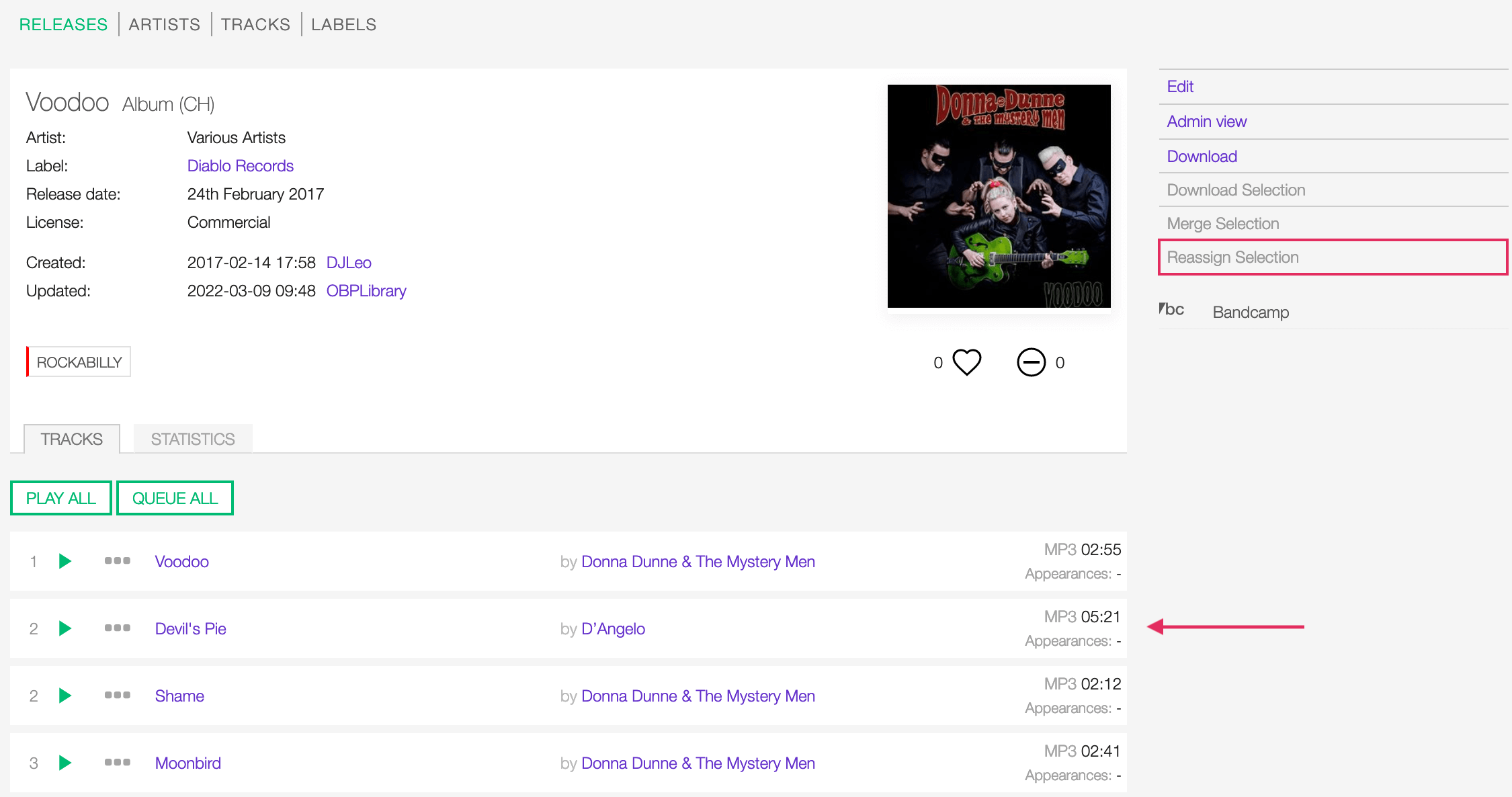
Track assigned to a wrong release (identical title)
Or the tracks list page:
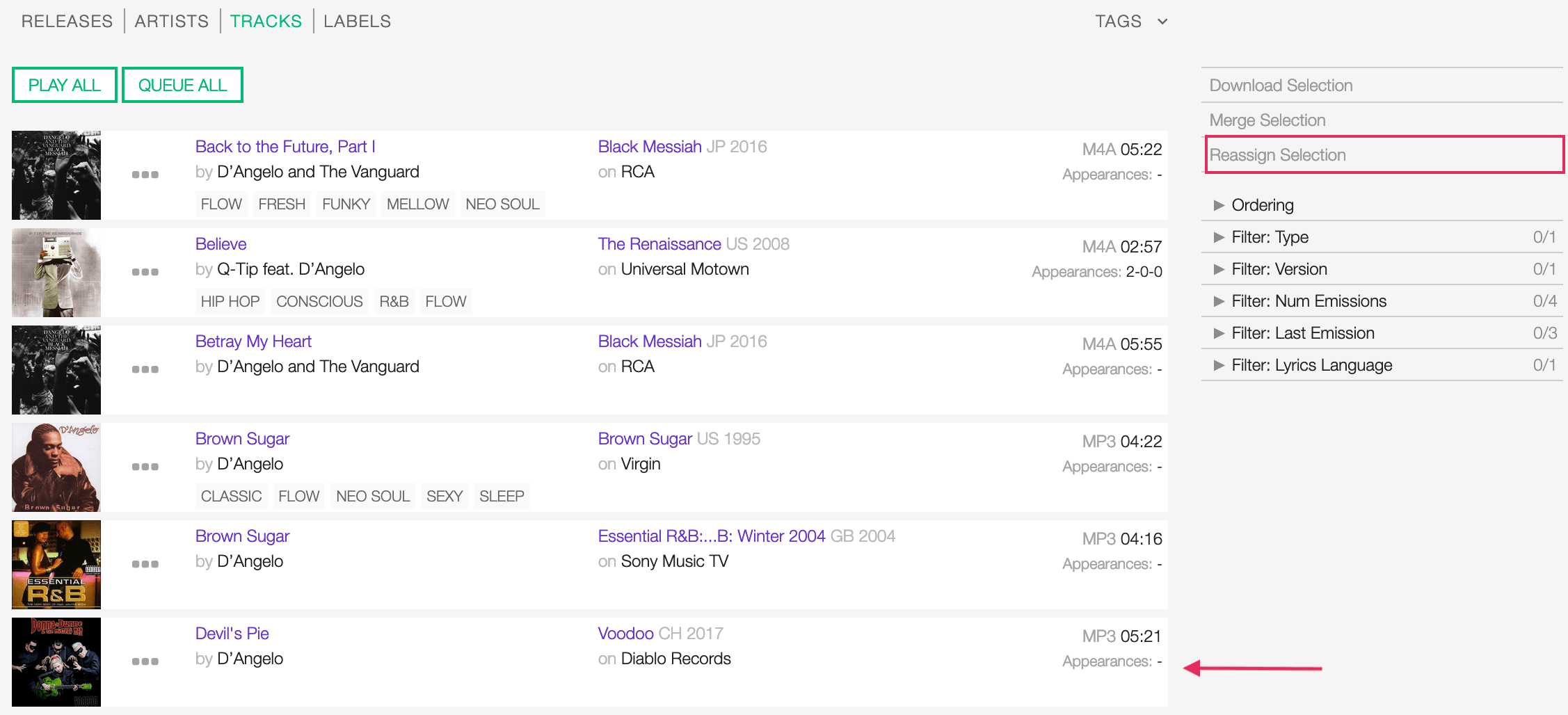
To start, select the track(s) to be reassigned and then click on Reassign Selection (right sidebar).
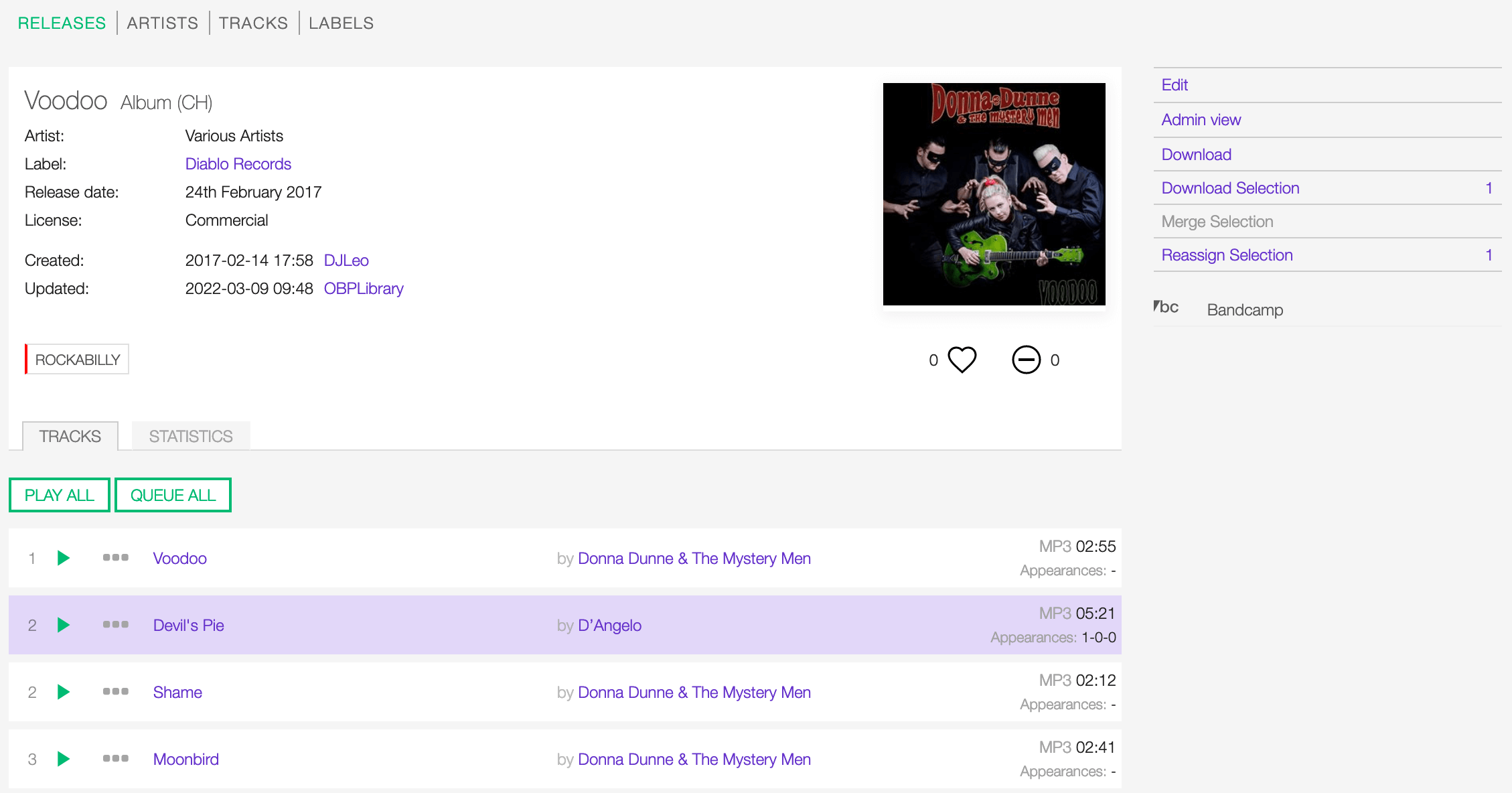
Move the cursor over the track card and click on it to select it. Click on it again to deselect it.
In the popup panel that opens up, type the release title.
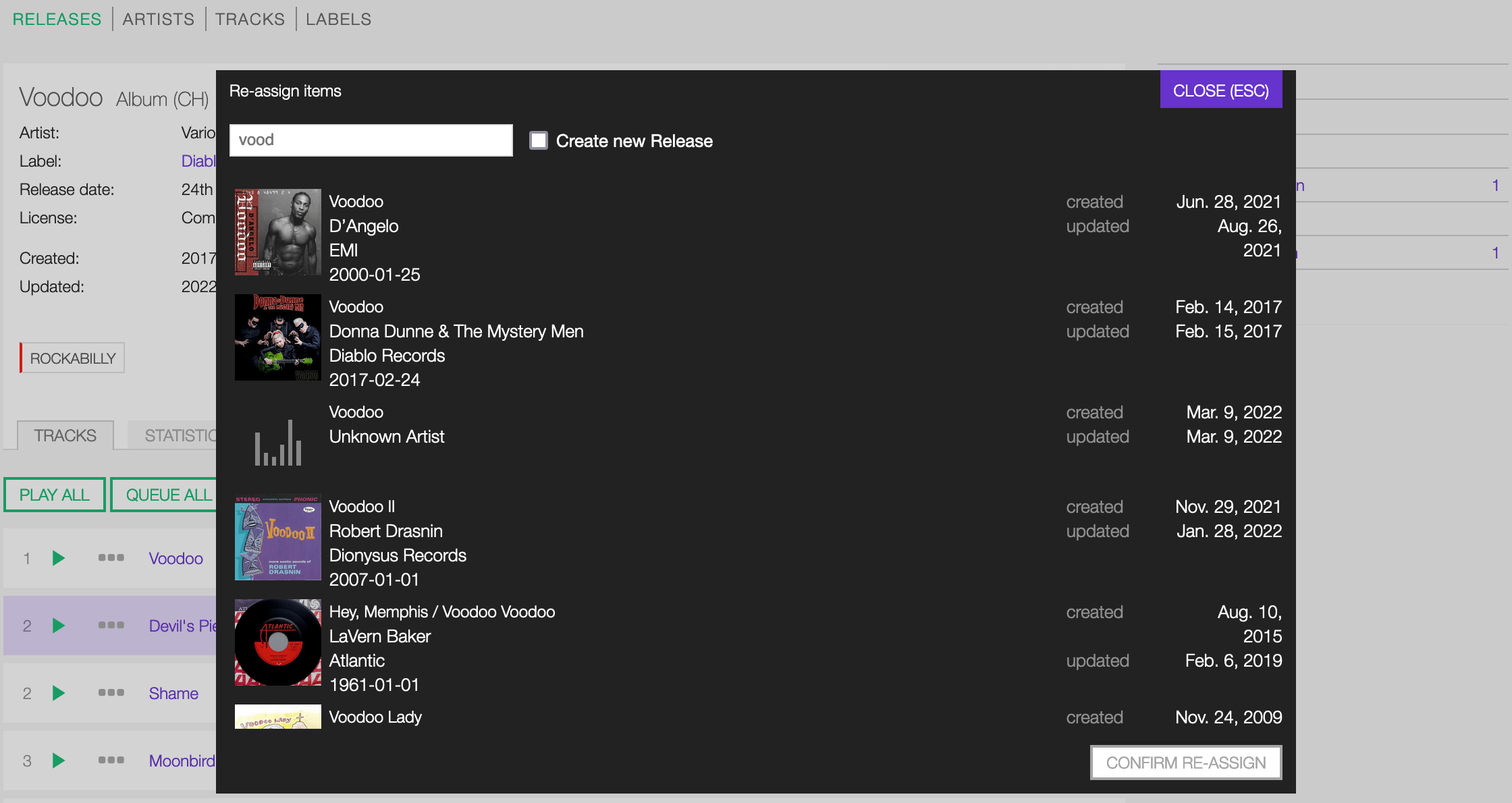
Note that typing inside the field activates the auto-completion, listing all releases in the library whose name matches with the current text typed in.
If you want to assign the track(s) to an existing release, click on a result to select it:
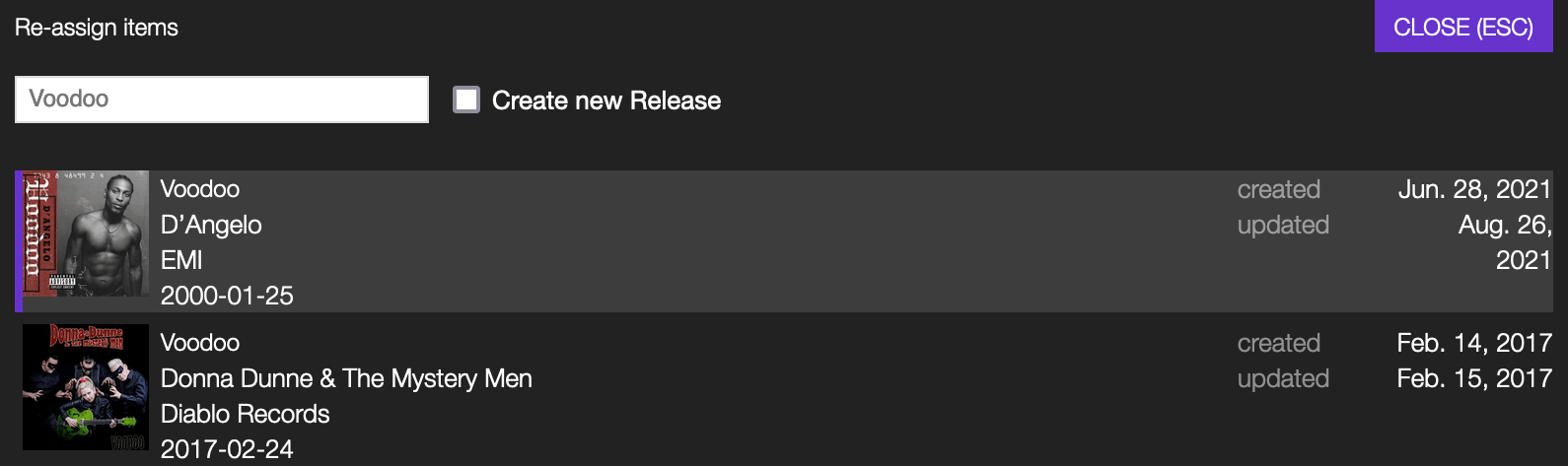
Else, check ‘Create new Release’:

Finally, click on CONFIRM RE-ASSIGN within the panel.
Note
Click on CLOSE (ESC) at any time to close the panel and abort the operation.
The system will automatically redirect you to the release profile/page the track(s) are now assigned.
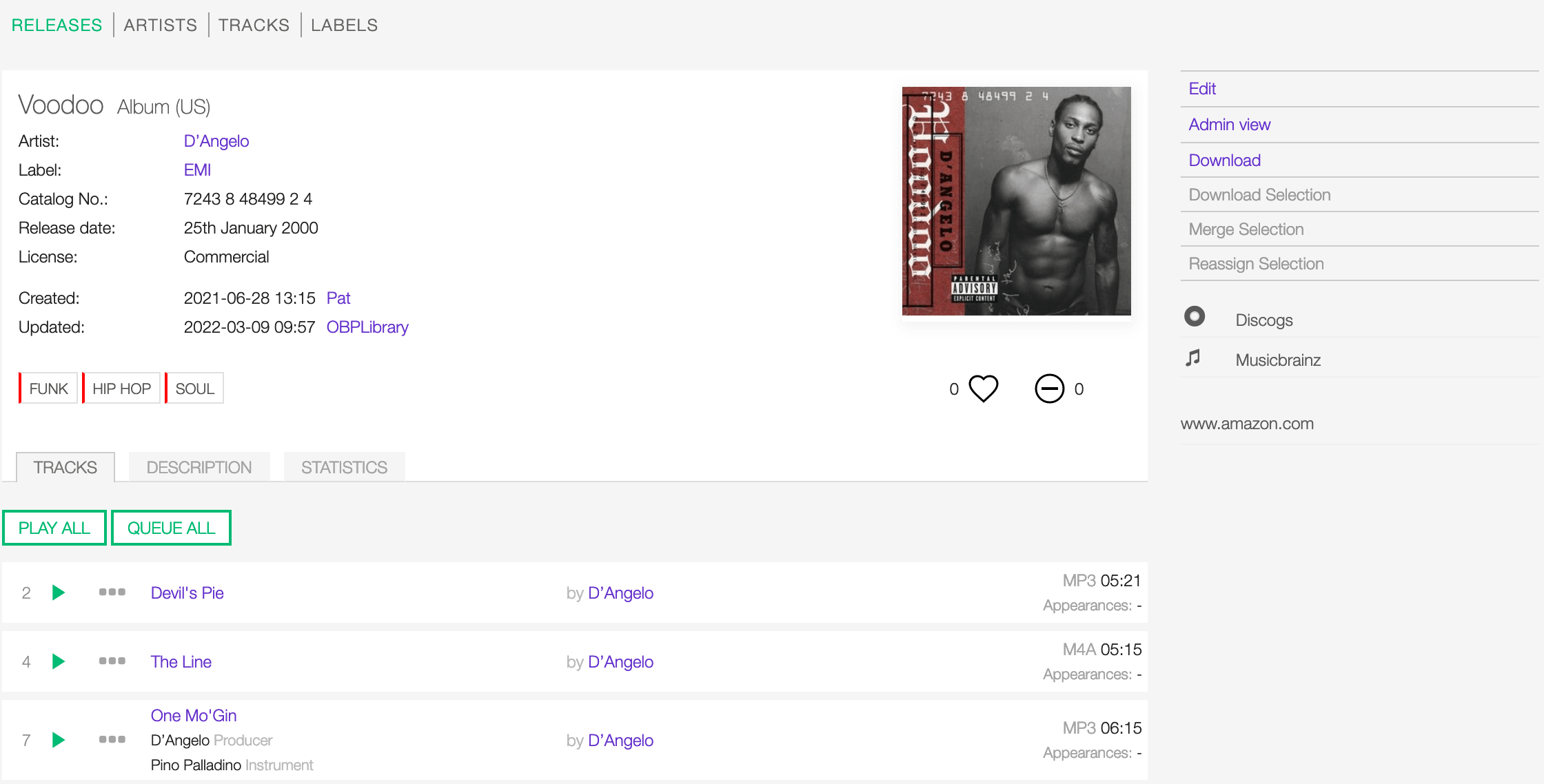
If needed, also adjust the track number according to the ‘new’ release tracklist.
See also: