Releases
Overview
In the music industry, a release usually is a creative output from an artist, available for sale or distribution; a broad term covering the many different formats music can be released in, and different forms of pieces (singles, albums, extended plays, etc.).
The word can also refer to the event at which an album or single is first offered for sale in record stores. Also an album launch, or single launch. (From the Wikipedia article Music release , which is released under the CC-BY-SA License ).
A release represents the unique release (i.e. issuing) of a product on a specific date with specific release information such as the country, label, barcode and packaging. (From the Musicbrainz article Release , which is released under the CC-BY-NC-SA License ).
Visit the form view chapter to see which information open broadcast collect for a release.
List view
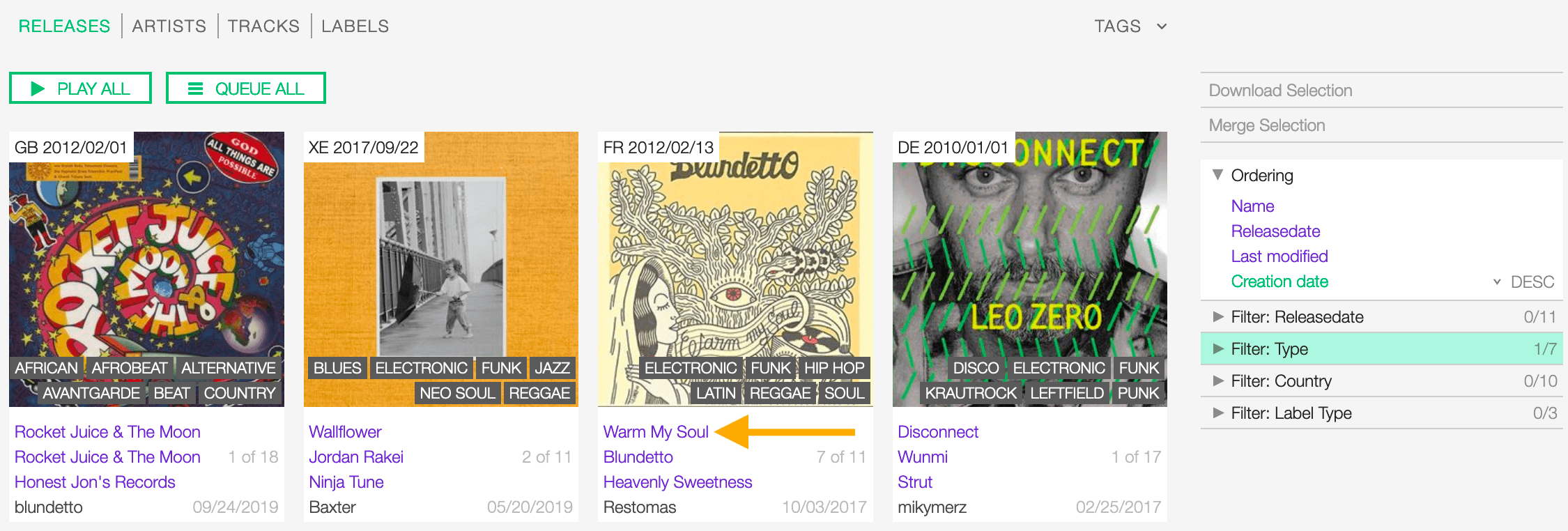
The list view displays all releases that are in the library.
To access it, open the CONTENT menu, click on LIBRARY, and then on RELEASES.

Note that search results are paginated (24 items per page). You can use the pagination controls above the list to navigate through the results pages.
The PLAY ALL and QUEUE ALL buttons allow you to play/queue all releases in the list at once.
See also:
Sorting the list
By default, the releases are sorted by Creation date (descending), the newly created release profile is displayed on the top-left side of the list.
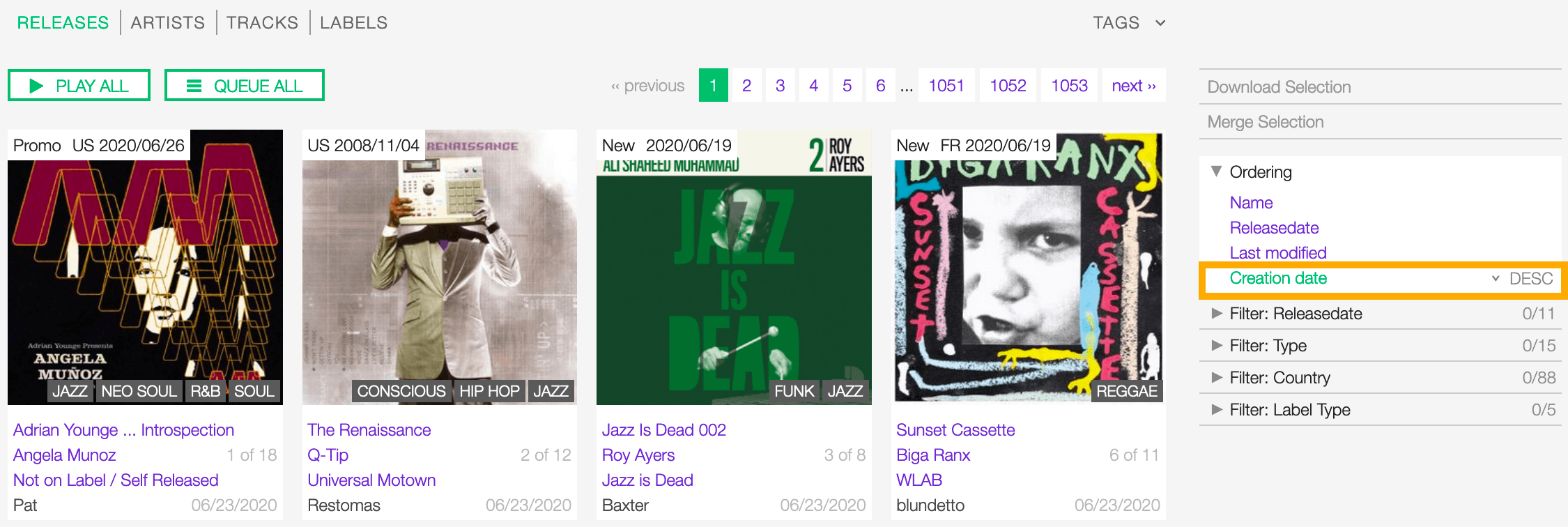
You can change the ordering parameter by clicking on Ordering to open the menu and selecting a different option.
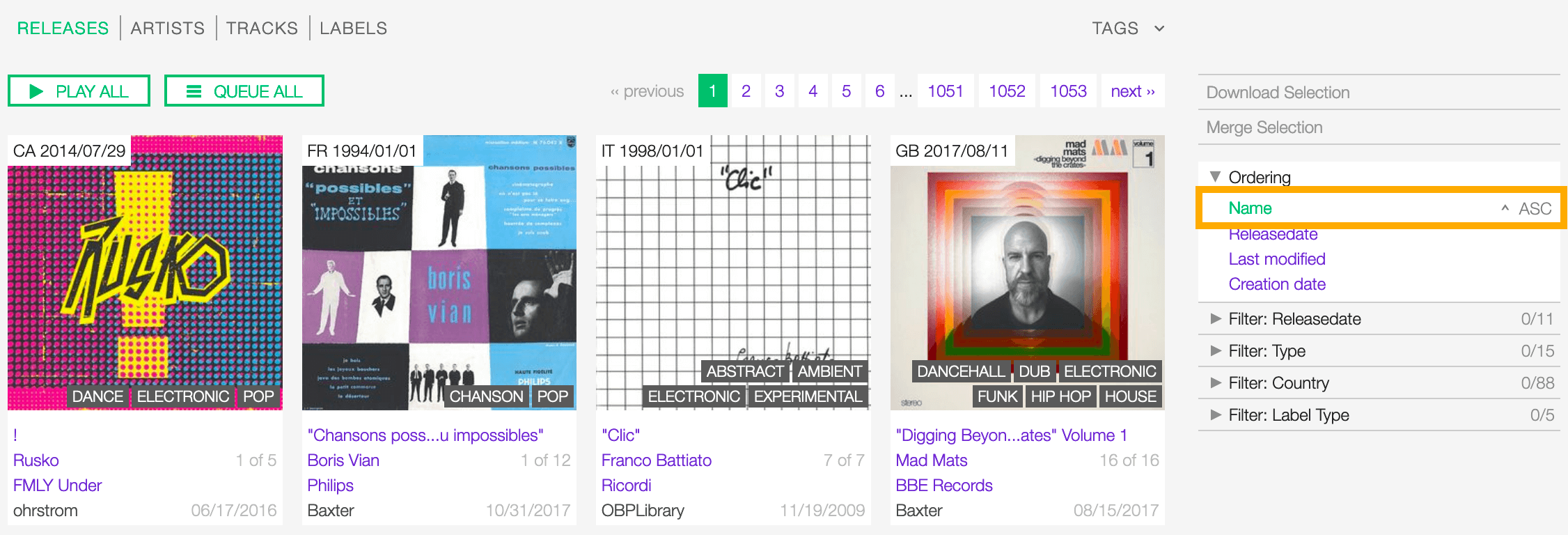
Click again on the active option to reverse the sorting order from ‘descending’ to ‘ascending’ (DESC/ASC).
The available options are:
- Name: The title of the release.
- Release date: The date the release was officially issued.
- Last Modified: The last date the release profile was edited.
- Creation date: The date the release profile was created.
Filtering the list
You can filter the list by tags and specific properties associated with the releases.
By tags
Click on TAGS to open the tag cloud and then on a tag to select it.

The page automatically reloads the filtered results every time you select, add, or remove a tag.
By specific property
Click on the Filter: <property> to open the menu, then click on one or more values in the list.
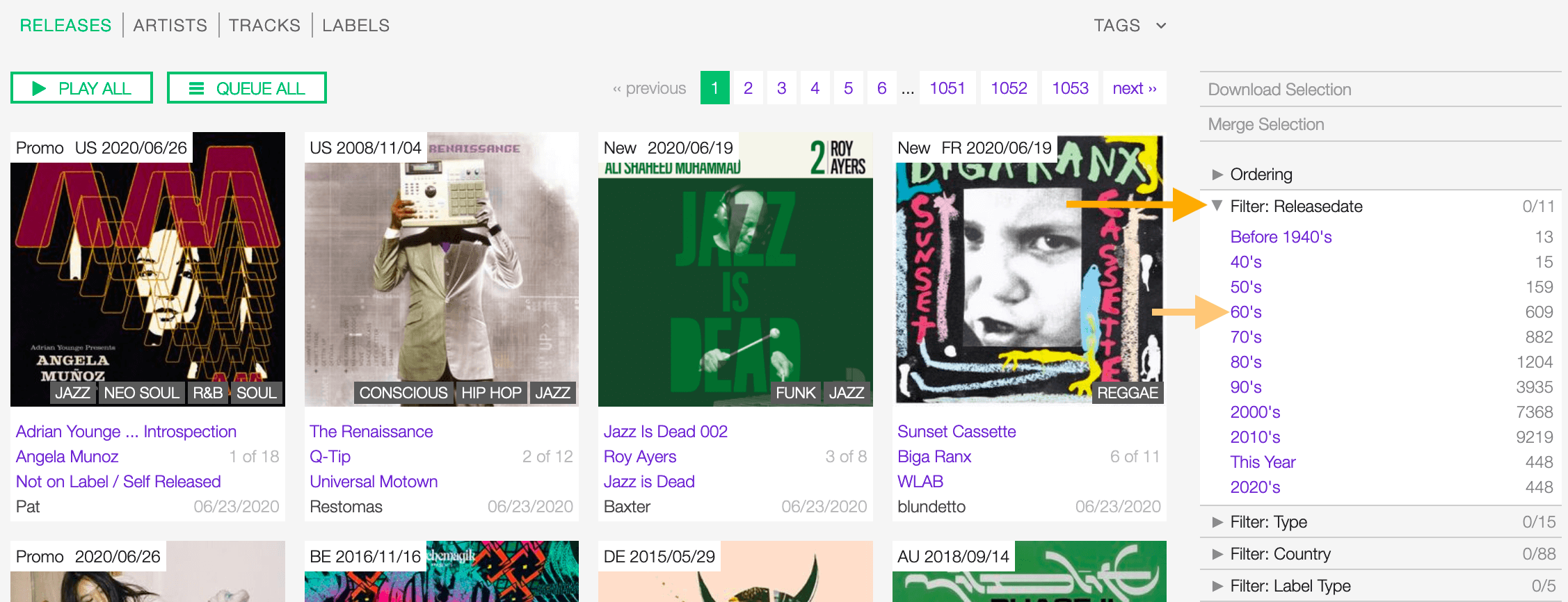
The page automatically reloads the filtered results every time you select, add, remove values from a specific filter, or add other filters/properties to the query.
You can filter by the following properties:
- Release date: The date the release was officially issued.
- Release type: The type of release.
- Release Country: The country the release was issued in.
- Label type: The type of label the release was issued on.
Tags and filters also work in combination:
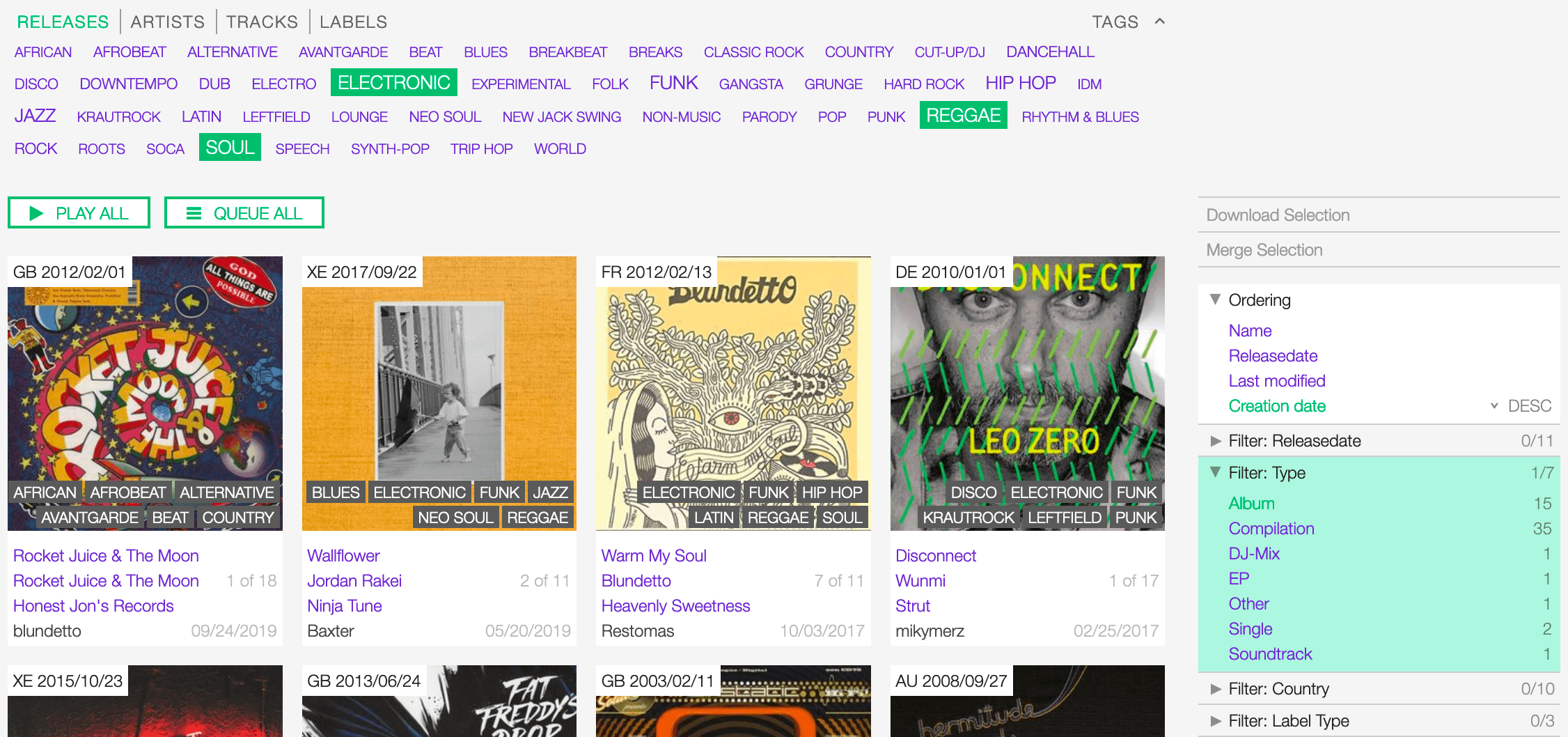
Example: Show all ELECTRONIC and ACID JAZZ Album releases sorted by Creation date.
Click again on any active tag or filter to deselect it and reset the result-set.
The Release card
The release card displays some information about the release.
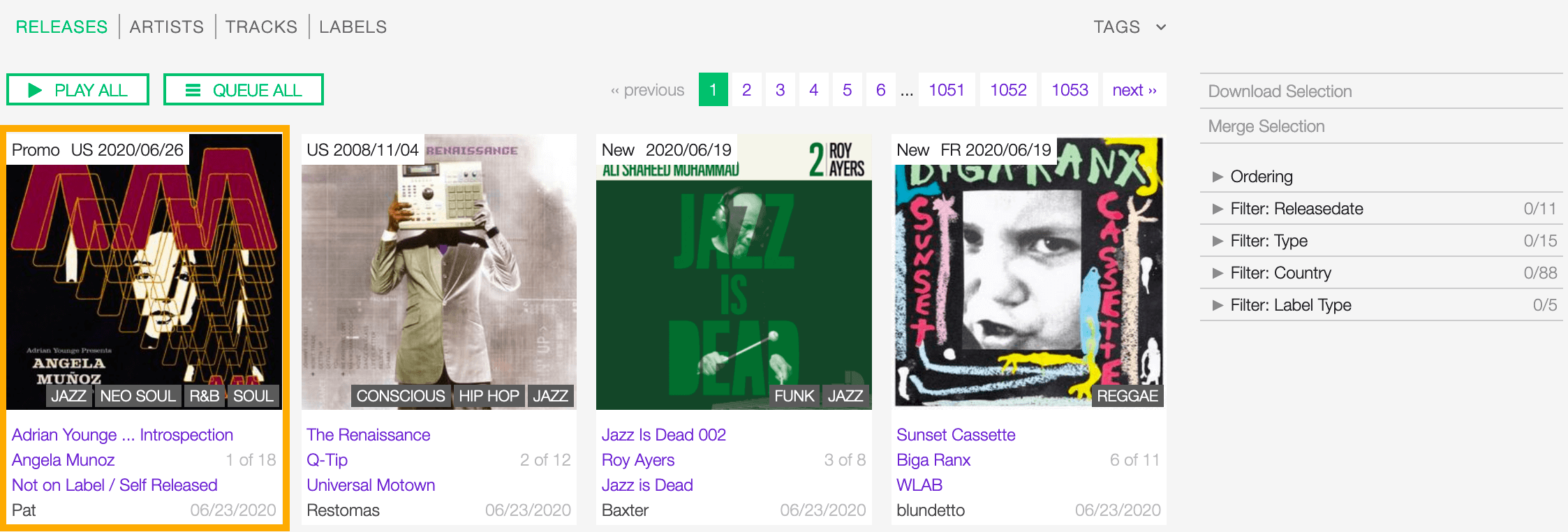
Starting at the top, the information is:
- Release Country: The country the release was issued in.
- Release date: The date the release was officially issued.
- Cover art: the cover art of the release.
- Tags: The tags associated with the release.
- Release title: The title of the release
- Artist: The name of the artist the release is credited to.
- Label: The name of label the release was issued on.
- Track count: The number of tracks available for the release / the total number.
- User name: The name of the user who created the release profile.
- Creation date: The date the release profile was created.
The card also includes some functionalities, visible as soon as you move the cursor over the cover art.
You can click the ‘Play’ button to listen to all tracks on the release:
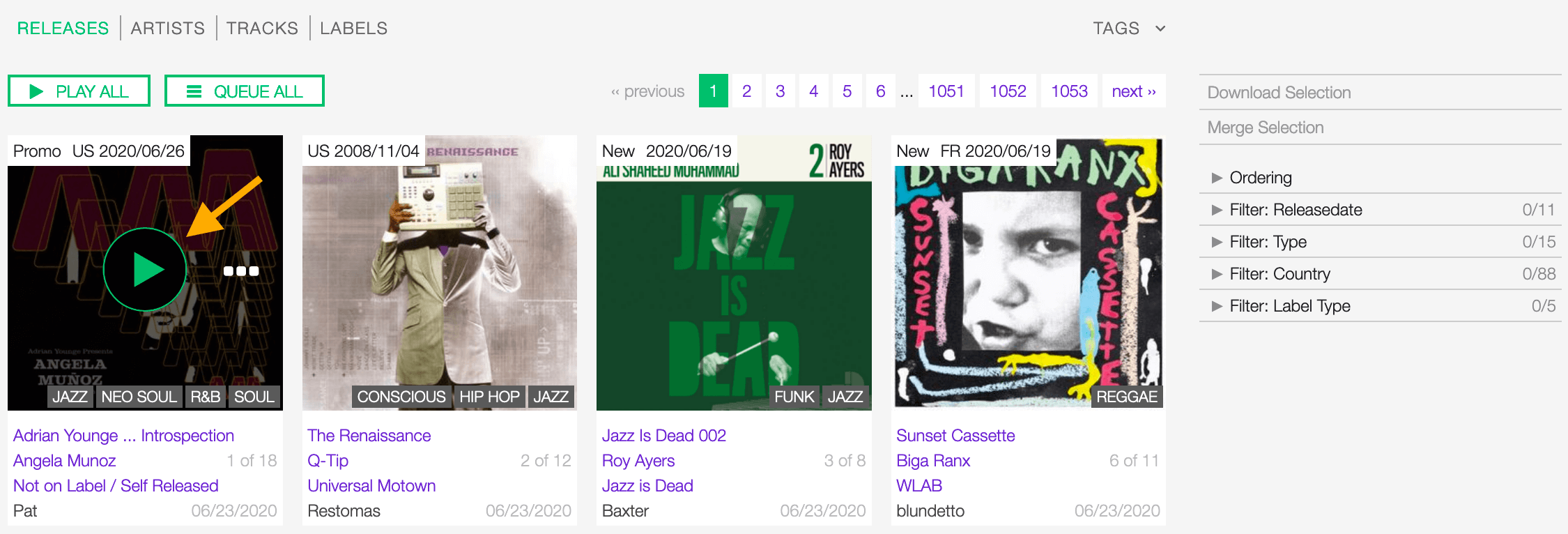
The popup player opens and starts playing it automatically
or on more options (3 dots) to access additional functionalities:
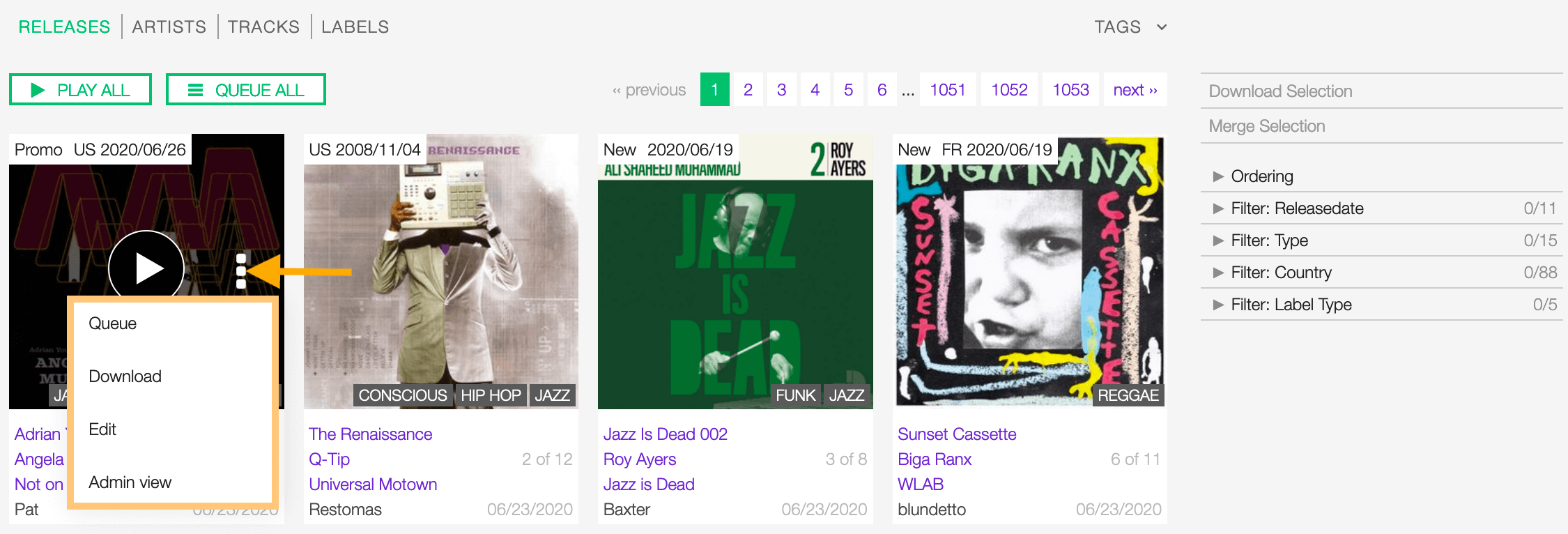
The available options are:
- Queue: Queue the tracks in the popup player.
- Download: Download the entire release.
- Edit: Open the form view of the release.
- Admin view: (Admin only).
Note
NEW or PROMO is a piece of additional information that is displayed automatically for the following cases:
- New: The release is ‘new on the market’ (up to 60 days from the issue date).
- Promo: The release is not available on the market yet (the current date precedes the issue date).
Actions on selection
To select one or more release(s), move the cursor over the card (below the image) and click on it.
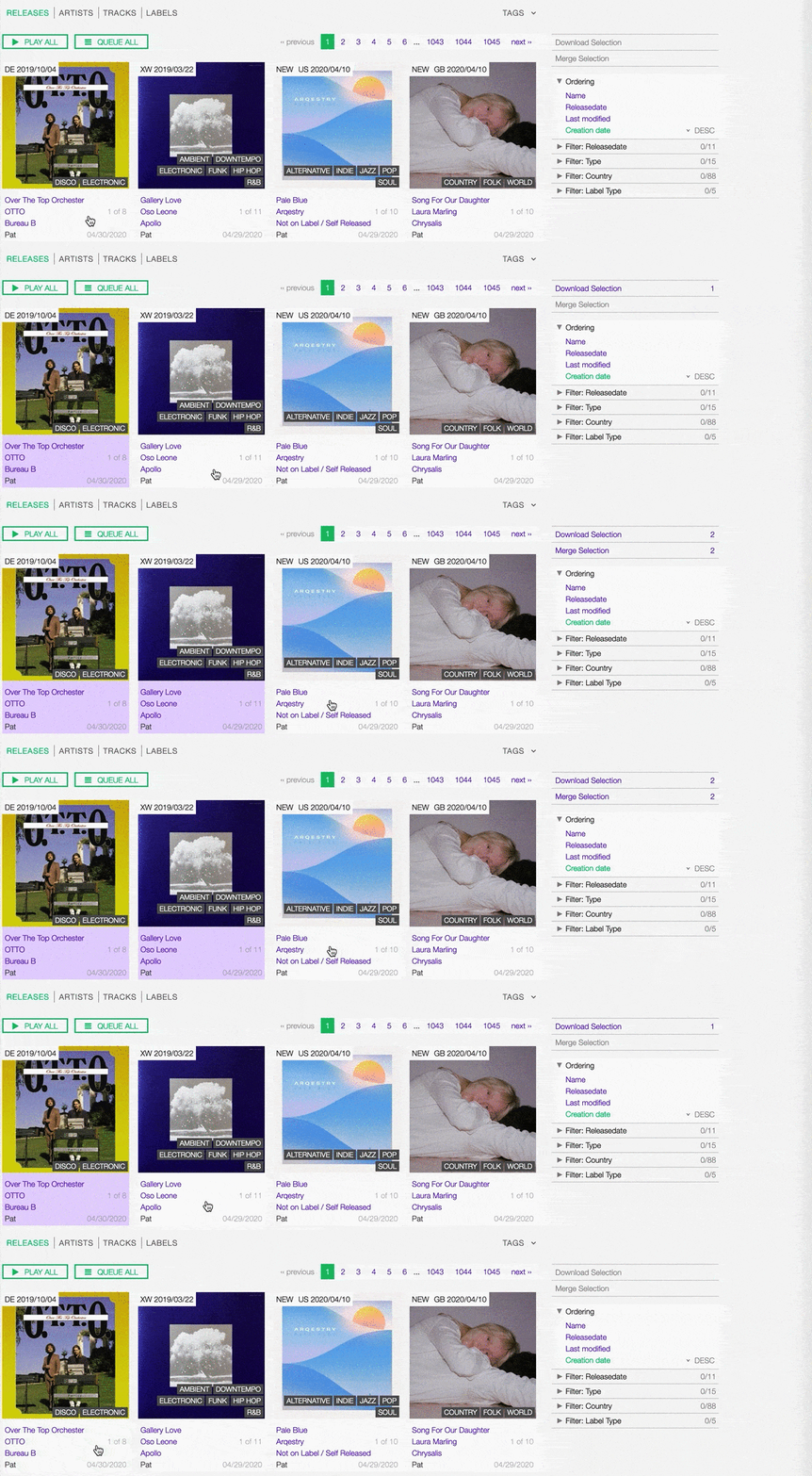
Click on the card again to deselect it.
The available actions are:
- Download selection: Download the selected items (Radio pro only).
- Merge selection: Merge the selected items (Admin only).
Detail view
To open the detail view of a release, go to the releases list page and click on the title of the release.
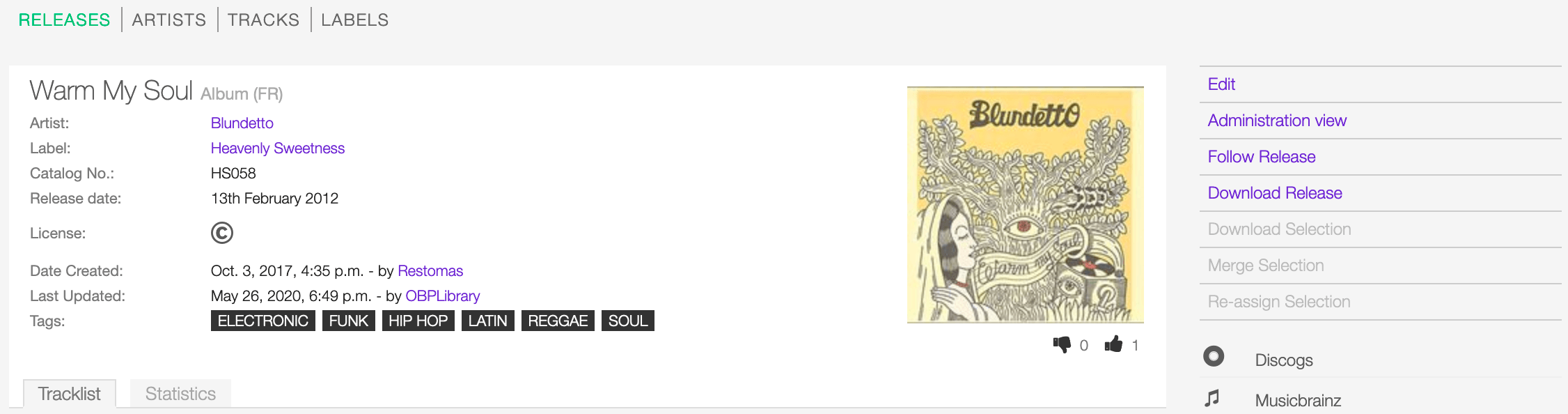
The detail view displays all information associated with the release. Starting at the top, the information are:
- Title / Type (Country): The title of the release / the type of release (the country release was issued in).
- Artist: The artist(s) the release is credited to.
- Label: The label the release was issued on.
- Catalog No: The label the release was issued on.
- Release date: The date the release was officially issued.
- License: The license applied to the tracks on the release.
- Date created: The date the release profile was created / the user who created the profile.
- Last Updated: The last date the release profile was edited / The last user who edited the profile.
- Tags: The tags associated with the release.
- Cover art (right side): The cover art of the release.
- Thumb up / thumb down (right side): The rating tool.
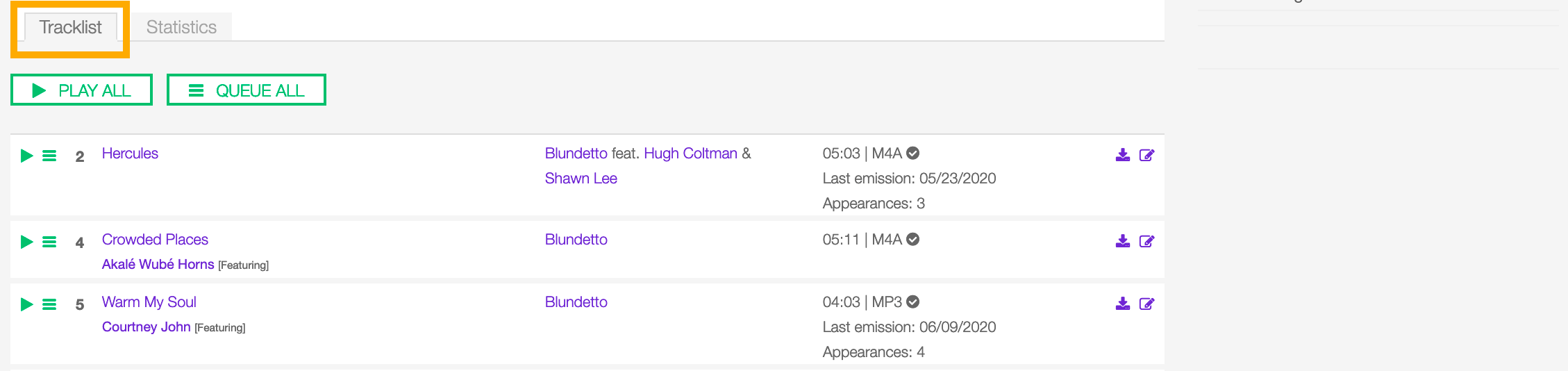
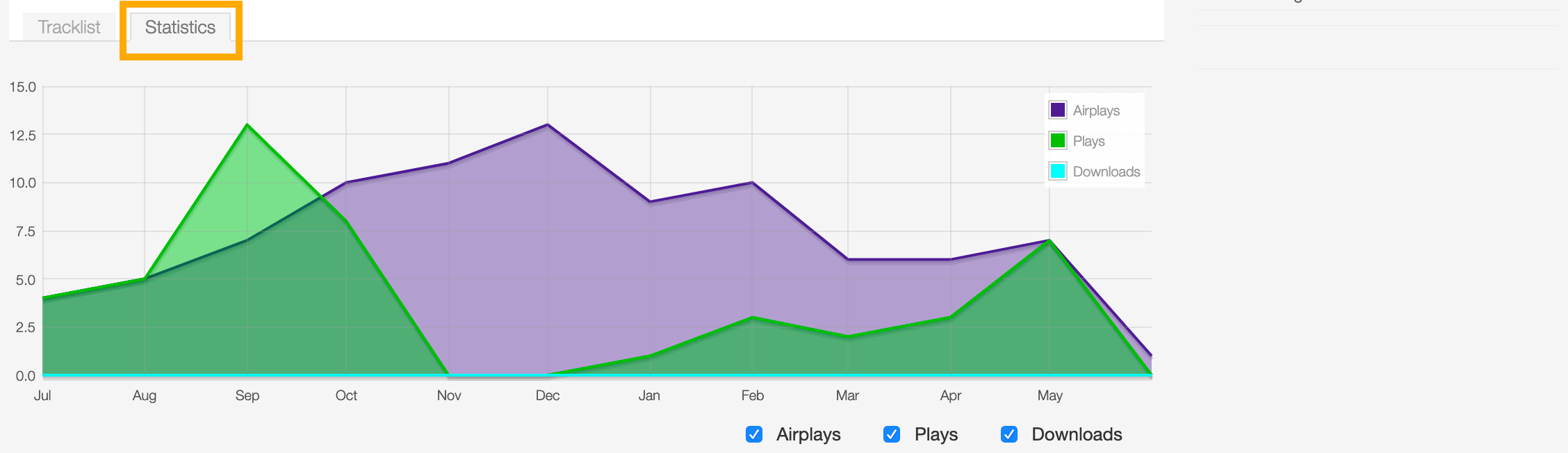
Statistics tab
The tracks usage statistics.
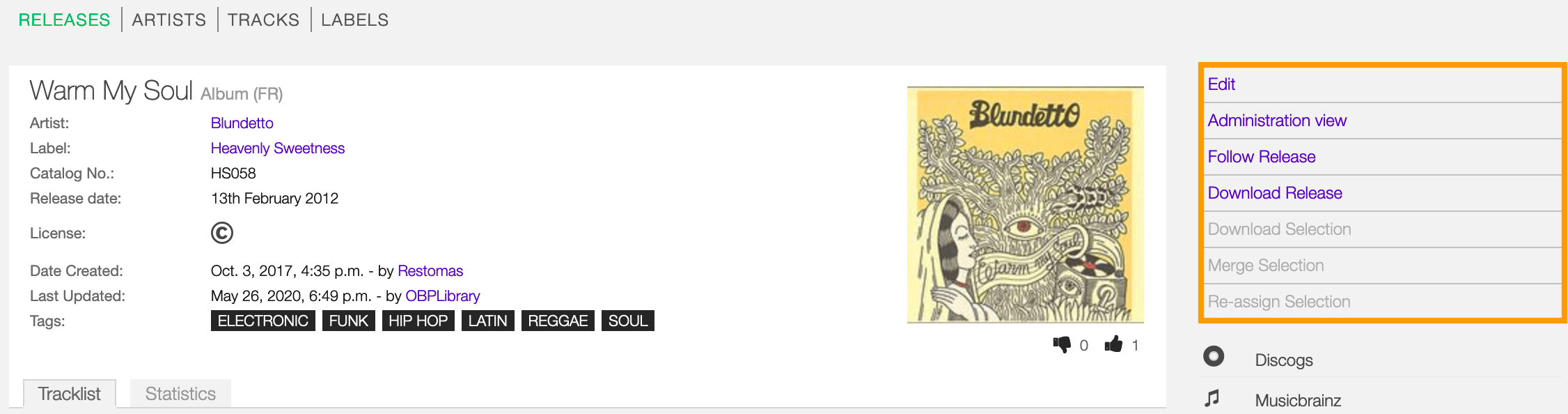
On the right side of the page are available the following options:
- Edit: Open the form to edit the information of the release.
- Administration view: (Admin only).
- Follow release: Start to follow the release.
- Download release: (Radio Pro only).
- Download selection: (Radio Pro only).
- Merge selection: (Admin only).
- Re-assign selection: (Admin only).
Below the options are listed the url(s) of the artist page on other online platforms.
Form view
The form view allows to edit the information of the release.
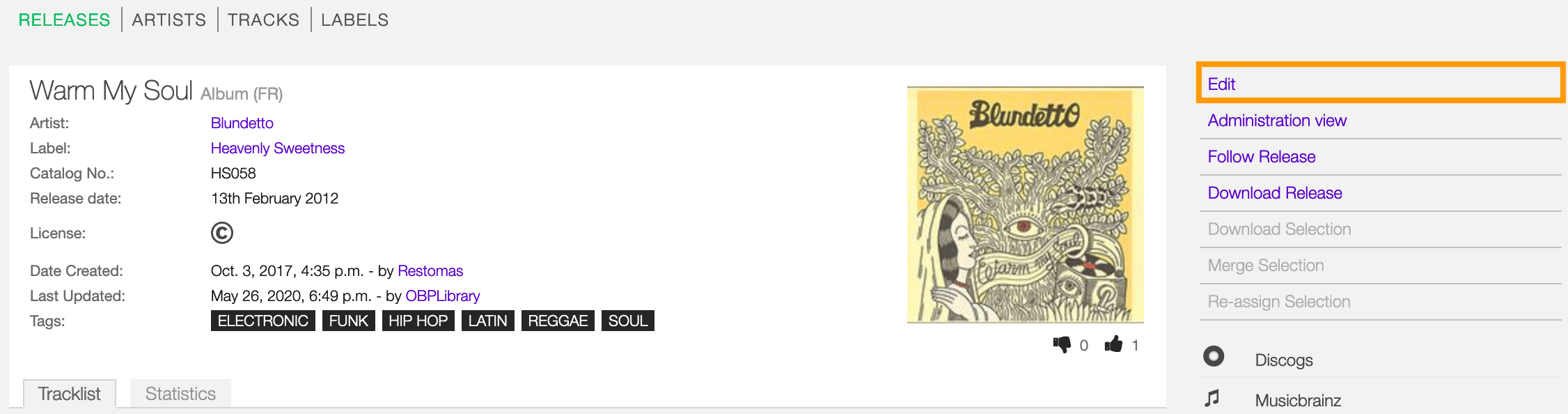
To open the form, go to the release detail page and click on Edit
Or from the releases list:
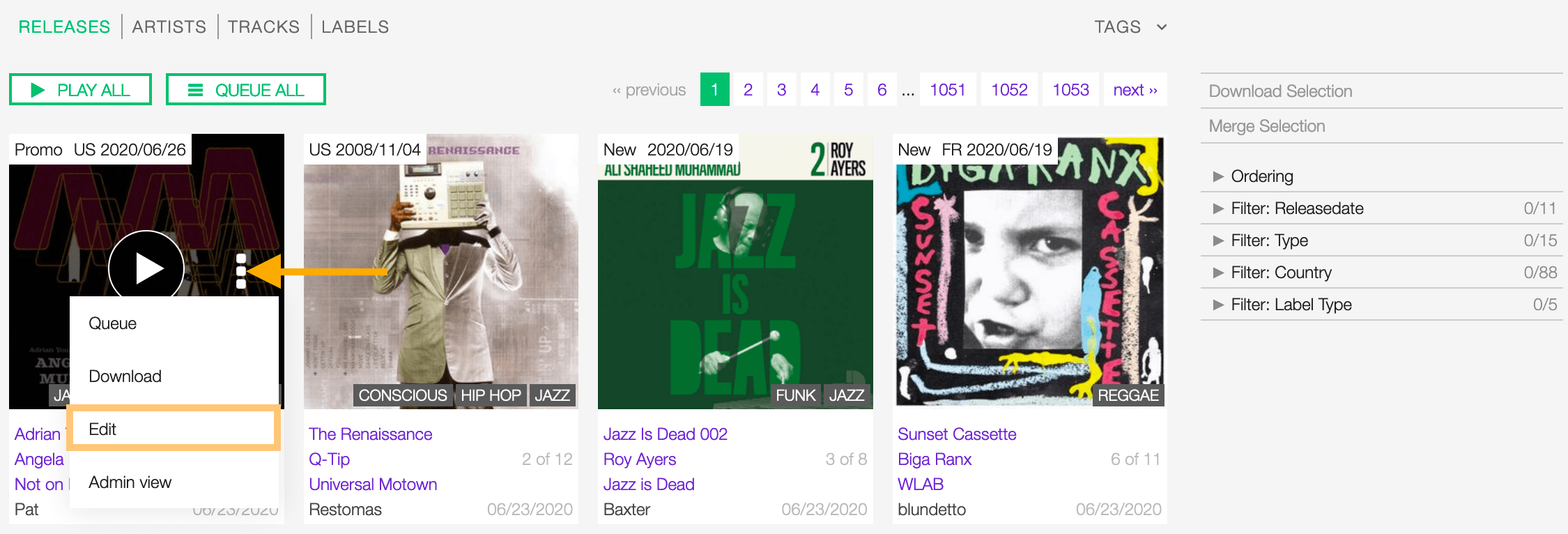
Click on more options (3 dots) to open the menu and then click on Edit.
On the top side of the form are displayed the current information of the release (as displayed in the detail view).
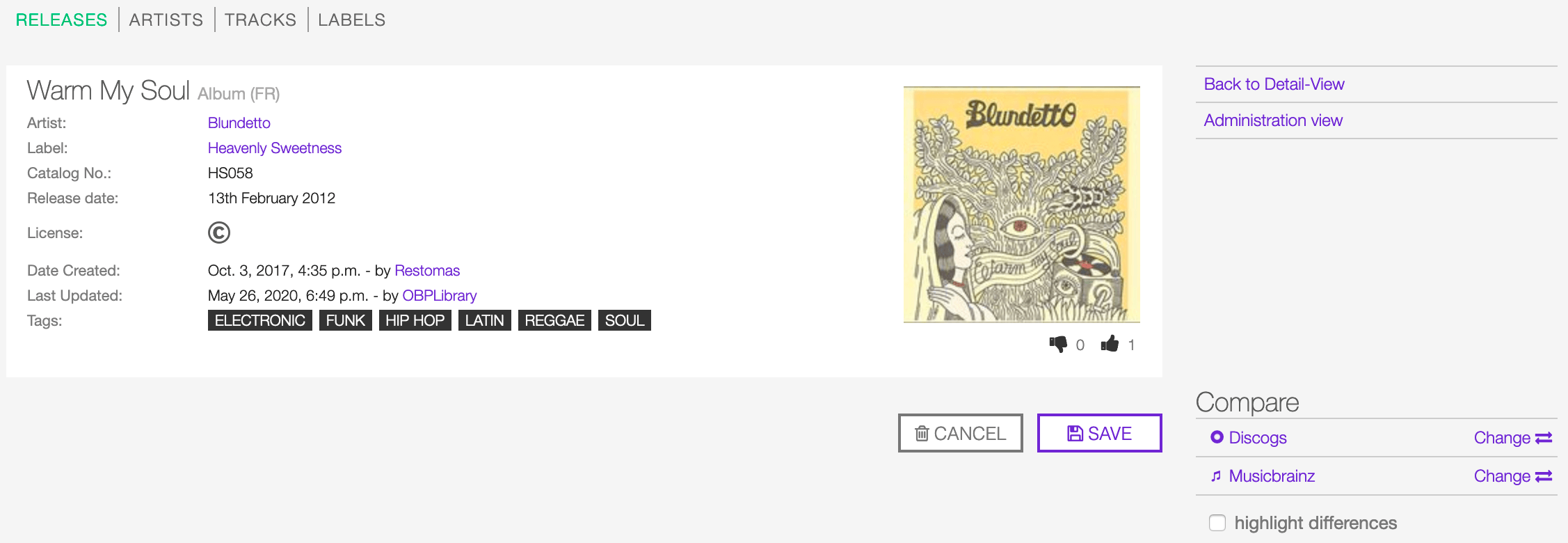
After editing the information, click on SAVE to confirm the changes or on CANCEL to undo the changes and reset the form.
On the right side of the page are available the following options:
- Back to detail view: Exit the form and return to the detail view.
- Administration view: (Admin only).
A comparison tool is available to help complete the information:
- Compare - Discogs: Search for matches in the Discogs database and retrieve the information from it.
- Compare - Musicbrainz: Search for matches in the Musicbrainz database and retrieve the information from it.
Below are described the information open broadcast collect for a release.
General
Name
The official title of the release. It can be found in the cover art, promo sheet or on reliable online sources.

Mandatory fields are marked with * and cannot be omitted.
Release type
The type of release. Please refer to the descriptions below to determine which value to choose.

Album
An album is a collection of audio recordings issued as a collection on compact disc (CD), vinyl, audio tape, or another medium.
In the United States, The Recording Academy’s rules for Grammy Awards state that an album must comprise a minimum total playing time of 15 minutes with at least five distinct tracks or a minimum total playing time of 30 minutes with no minimum track requirement. In the United Kingdom, the criteria for the UK Albums Chart is that a recording counts as an ‘album’ if it either has more than four tracks or lasts more than 25 minutes. (From the Wikipedia article Album , which is released under the CC-BY-SA License ).
Single
In music, a single is a type of release, typically a song recording of fewer tracks than an LP record or an album. This can be released for sale to the public in a variety of different formats. In most cases, a single is a song that is released separately from an album, although it usually also appears on an album. Typically, these are the songs from albums that are released separately for promotional uses such as digital download or commercial radio airplay and are expected to be the most popular. (From the Wikipedia article Single , which is released under the CC-BY-SA License ).
EP
An extended play record, often referred to as an EP, is a musical recording that contains more tracks than a single, but is usually unqualified as an album or LP. Contemporary EPs generally contain a minimum of three tracks and maximum of six tracks. (From the Wikipedia article Extended-play , which is released under the CC-BY-SA License ).
Compilation
A compilation album comprises tracks, which may be previously released or unreleased, usually from several separate recordings by either one or several performers. If by one artist, then generally the tracks were not originally intended for release together as a single work,[1] but may be collected together as a greatest hits album or box set. (From the Wikipedia article Compilation album , which is released under the CC-BY-SA License ).
Soundtrack
A soundtrack album is any album that incorporates music directly recorded from the soundtrack of a particular feature film or television show. (From the Wikipedia article Soundtrack album , which is released under the CC-BY-SA License ).
Audiobook
An audiobook (or a talking book) is a recording of a book or other work being read out loud. (From the Wikipedia article Audiobook , which is released under the CC-BY-SA License ).
Spoken word
A spoken word album is a recording of spoken material, a predecessor of the contemporary audiobook genre. Rather than featuring music or songs, the content of spoken word albums include political speeches, dramatic readings of historical documents, dialogue from a film soundtrack, dramatized versions of literary classics, stories for children, and comedic material. (From the Wikipedia article Spoken word album , which is released under the CC-BY-SA License ).
Interview
In media terms, an interview disc is a recorded disc with spoken word recordings in an interview style format, with a specific person or group of people, as opposed to the usual music features. The source of the recording can vary. (From the Wikipedia article Interview disc , which is released under the CC-BY-SA License ).
Jingle
A jingle album is an album consisting of memorable slogan (jingles) for radio and television commercials.
Live
Live albums may be recorded at a single concert, or combine recordings made at multiple concerts. They may include applause and other noise from the audience, comments by the performers between pieces, improvisation, and so on. (From the Wikipedia article Live album , which is released under the CC-BY-SA License ).
Remix
A remix album is an album consisting of remixes or rerecorded versions of an artist’s earlier released material. (From the Wikipedia article Remix album , which is released under the CC-BY-SA License ).
Broadcast
An episodic release that was originally broadcast via radio, television, or the Internet, including podcasts.
Dj-mix
A DJ mix or DJ mixset is a sequence of musical tracks typically mixed together to appear as one continuous track. DJ mixes are usually performed using a DJ mixer and multiple sounds sources, such as turntables, CD players, digital audio players or computer sound cards, sometimes with the addition of samplers and effects units, although it is possible to create one using sound editing software. (From the Wikipedia article Dj mix , which is released under the CC-BY-SA License ).
Mixtape
A mixtape (alternatively mix-tape or mix tape) is a compilation of music, typically from multiple sources, recorded onto a medium. With origins in the 1980s, the term normally describes a homemade compilation of music onto a cassette tape, CD, or digital playlist.
In hip hop and R&B culture, a mixtape often describes a self-produced or independently released album issued free of charge to gain publicity or avoid possible copyright infringement. However, the term has been applied to a number of releases published for profit in the 2010s; in this context, a mixtape is comparable to a studio album or extended play. (From the Wikipedia article Mixtape , which is released under the CC-BY-SA License ).
Other
Any release that does not fit in any of the categories above.

Album artists
The artist(s) the release is primarily credited to.

By default the system display the name of the artist the tracks on the release are credited to. If the tracks are credited to multiple artists (i.e. a compilation) ‘Various artists’ will be displayed instead.
To override the default value, type the artist name inside the first field. To combine multiple artists / names, type the names in separated fields and select the ‘join phrase’ to be used in between.
Note
Typing inside the ‘Album artists’ field activates the auto-completion, listing all profiles in the library whose name matches the current text typed in.
Click on the matching profile to select it or on ‘Close’ to close the list and create a new profile.
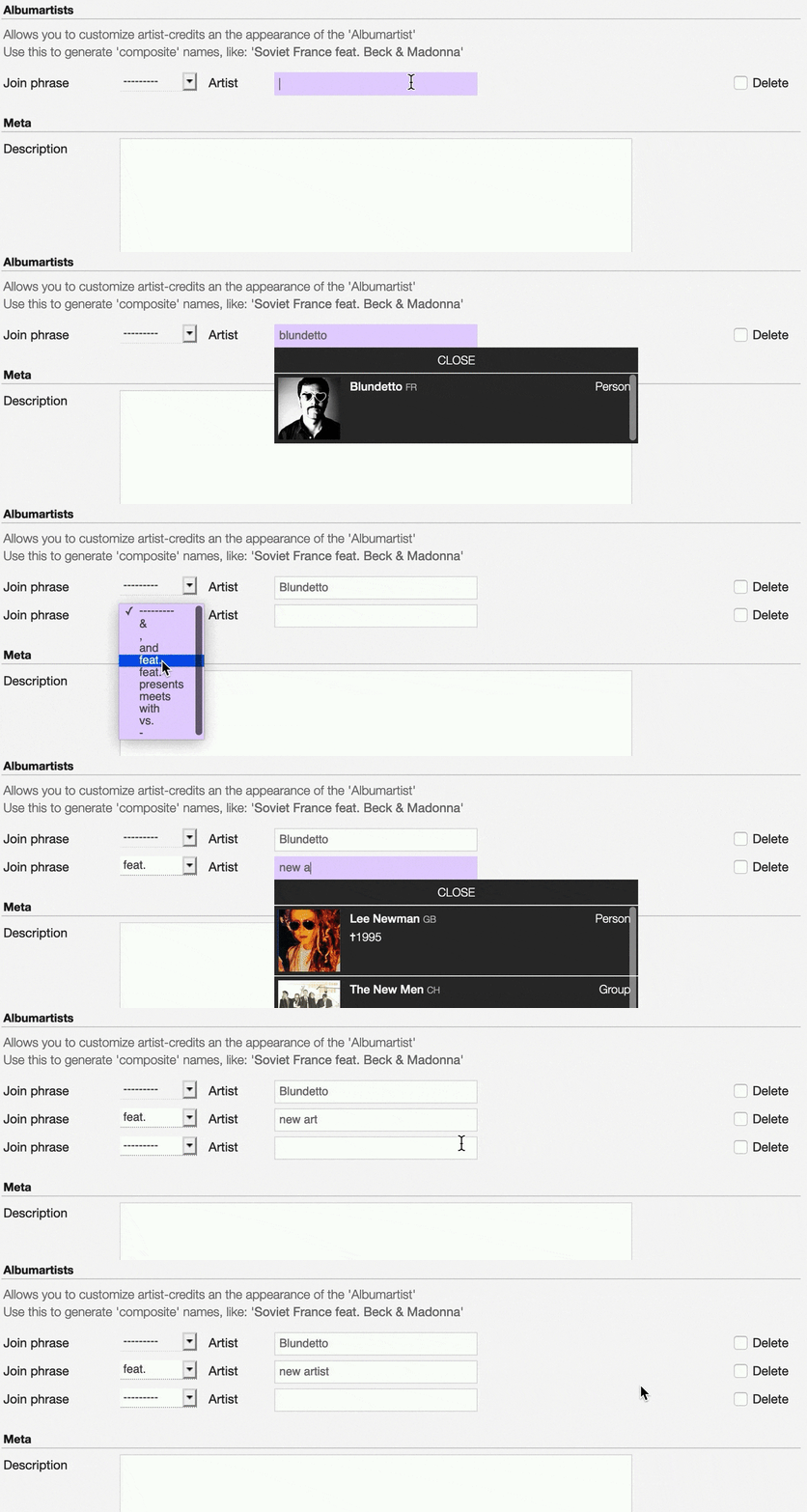
The system automatically creates a new empty field every time a name is entered. (up to 15 per editing session).
To remove an artist click on the respective ‘Delete’ check-box and save the form.
Meta

Main image
The cover art of the release.

To upload an image, click on Browse and select a picture from the computer file browser.
Label / Catalog
Label
The name of the label the release was issued on.

Note
Typing inside the ‘Label’ field activates the auto-completion, listing all profiles in the library whose name matches the current text typed in.
Click on the matching profile to select it or on ‘Close’ to close the list and create a new profile.
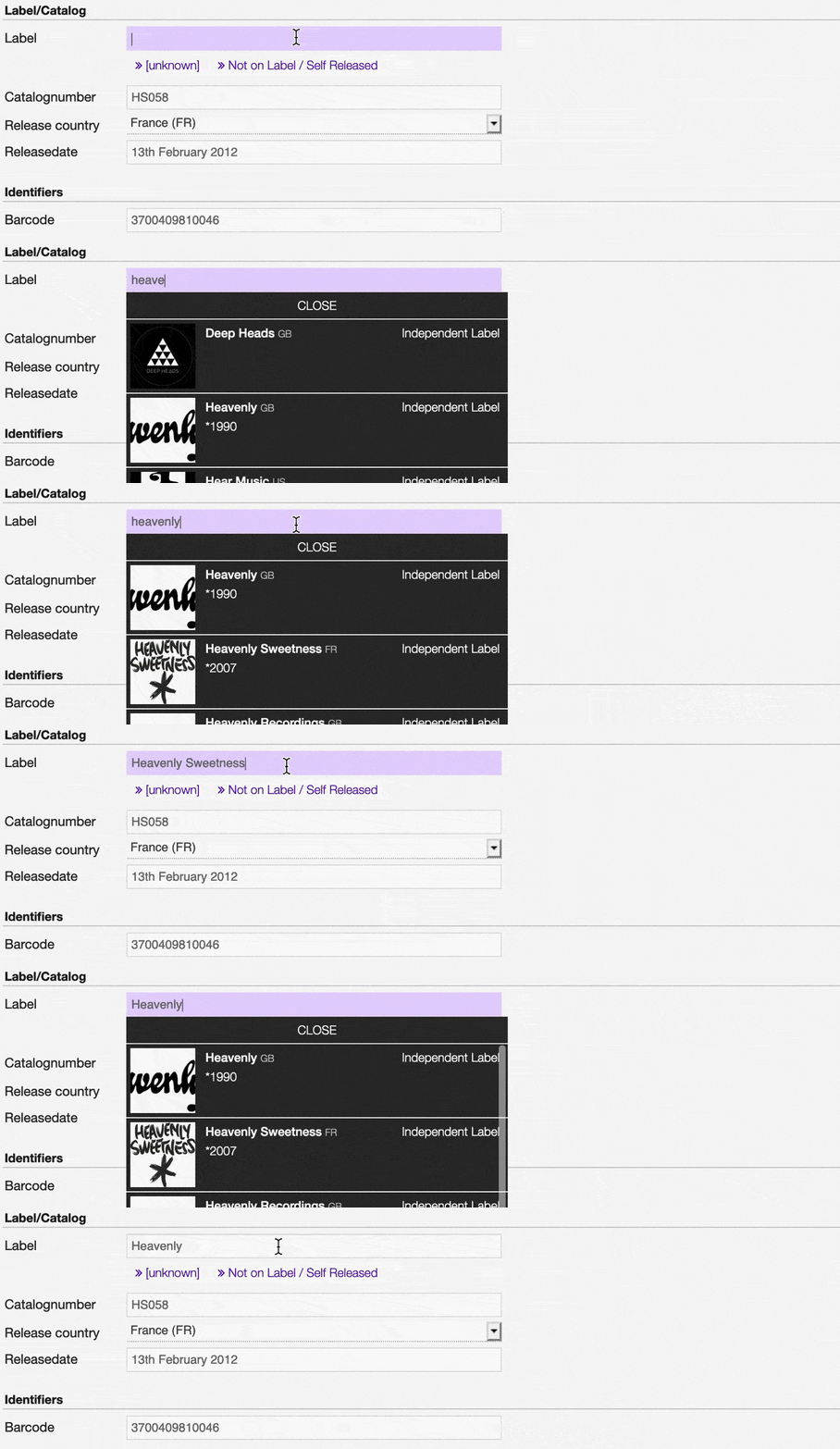
Click on [unknown] if the information is not available or on Not on Label / Self Released if the release is not issued on a label or it is released by the artist itself.



Identifiers
The identification code associated with the release.
Barcode
The barcode of the release.

Barcodes are numbers used as stock control mechanisms by retailers: as such they are highly standardised and well recognised, and form an invaluable identifier for communication between companies. On physical releases, they usually appear in the form of a machine-readable series of black and white bars, hence the name ‘barcode’.
There are many different types of barcode, but the ones usually found on music releases are two:
- Universal Product Code (UPC), which is the original barcode used in North America. They are 12 digits long, but any number of zeros at the start can be left off, so the actual printed barcode can be shorter than this.
- European Article Number (EAN) also known as Japanese Article Number (JAN), which is widely used in the rest of the world. The 13 digit type (EAN-13) is the most common, although there are others such as EAN-8. A UPC can be turned into an EAN-13 by adding a leading zero.
(From the Musicbrainz article Barcode , which is released under the CC-BY-NC-SA License ).
Tags
One or more keyword(s) to help describe the release (i.e. the music genre / style).

Note
Typing inside the ‘Tags’ field activates the auto-completion, listing all tags in the library whose name matches the current text typed in.
Click on the matching tag to select it or hit the ‘Enter’ key to create a new tag.

To remove a tag click on the ‘X’ within it.
Relations
The url of the release page on other online platforms.

To remove a url / link click on the respective ‘Delete’ check-box and save the form.
Tracklist
You can edit minimal information about the track/s included in the release directly from the release form.
Bulk editing tool
The “bulk edit” tool allows you to change the artist or license of all the tracks simultaneously.

To change the artist, type the name inside the “Artist” field and click on Apply Artist to all the tracks.
Note
As for the Album artists, typing inside the ‘Artist’ field activates the auto-completion, listing all profiles in the library whose name matches the current text typed in.
To change the license, click on the “License” dropdown menu, select one of the options from the list and finally click on Apply License to all the tracks.
Once you have applied the changes, click the SAVE button on the release form to update the information.

Tracks forms

Click on Edit track to open the track form and edit additional information.
For each track, you can edit:
After editing any information, click on SAVE to confirm the changes or on CANCEL to undo the changes and reset the form.